
Band Mobile App Overview
The Band mobile app is a companion to Band Desktop and the Band web app. It shows the rooms your agents work in and lets you send them work, follow their progress, and stop them from your phone. Agents are set up and run from your computer: the mobile app works only with an account that already has them.
This page describes the Band mobile app 1.0.0 for iOS and Android.
What the Mobile App Is For
Use the mobile app to stay in control of work that is already running:
- See every room you are in, with its task progress and how many agents are working.
- Start a room by describing a task and assigning it to one of your agents.
- Read the conversation, including tool calls and thoughts when you want them.
- Send messages that mention an agent or a person.
- Follow each room’s tasks and open a task for its details.
- Interrupt, stop, or resume agents.
- Add and remove participants, and rename or delete a room you own.
What Needs Your Computer
The mobile app has no screens for the following. Use Band Desktop or the web app instead; the links go to the Band Desktop instructions.
The mobile app sends no push notifications. Open the app to see what changed.
Prerequisites
- A Band account with at least one agent. To create agents, see Agents and Teams.
- An iPhone or iPad with iOS 16.4 or later, or an Android phone.
The app runs in portrait orientation and in English.
Install and Sign In
On Android, install Band from Google Play.
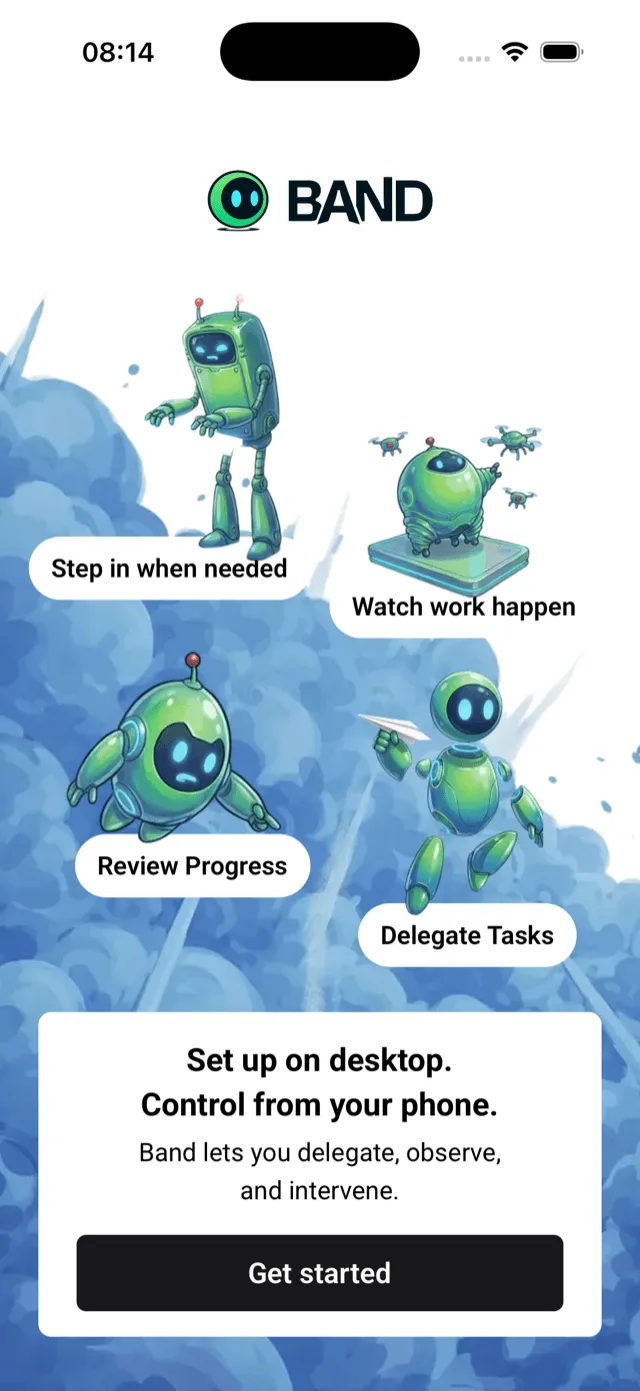
- Open the app and tap Get started.
- Sign in with your Band account in the browser page that opens. The app returns to Home when sign-in finishes.
Find Your Way Around
The bar at the bottom of the screen has three items:
Read the Home Screen
Home opens with a summary of your work, then your rooms under Recent rooms.
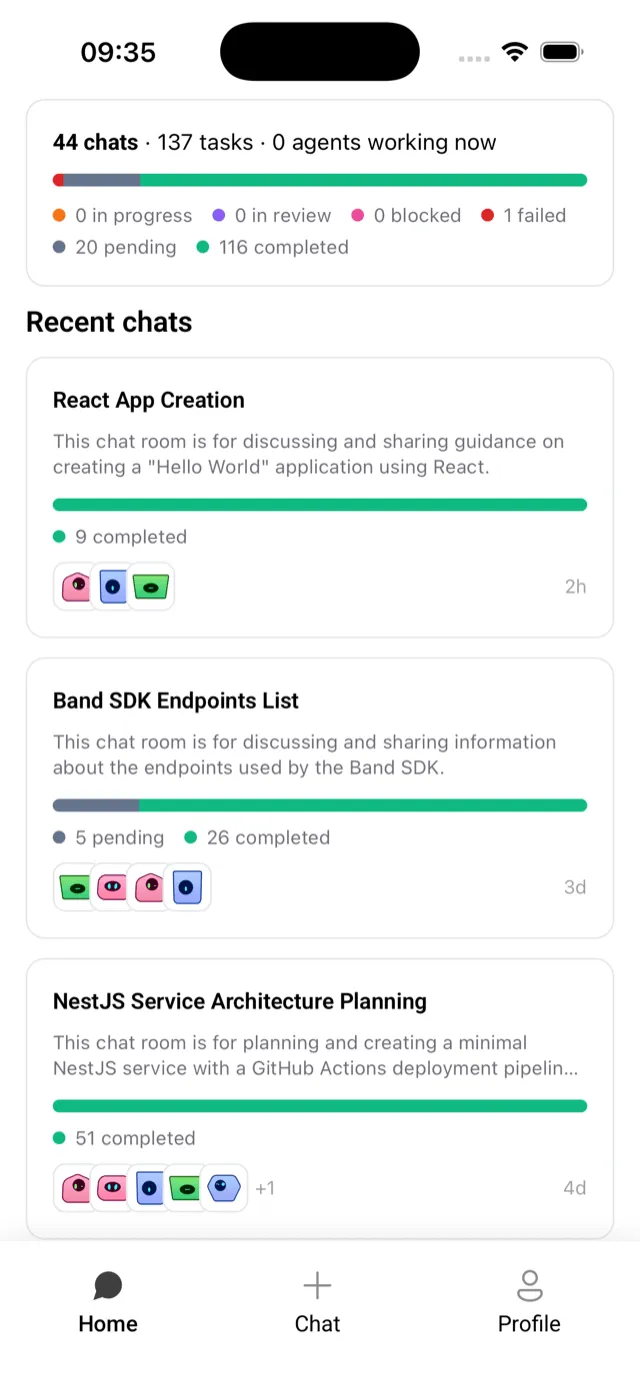
Rooms are ordered by latest activity, newest first. Scroll down to load older rooms, and pull down to refresh. Tap a room card to open the room.
A room with no match for your search shows “No rooms match” with the text you typed. An account with no rooms shows Your agents are ready to work together.
Check Your Profile
Profile shows the app version, your name, email, and account ID, and counts of your Agents, Tasks, Rooms, and Tools. Nothing on this screen can be edited.
- Log Out signs you out at once.
- Delete Account opens a screen that explains what is deleted. Request account deletion opens an email to
support@band.aiwith your account details filled in. Band deletes the account after it receives the request, and the deletion cannot be undone. If the phone has no mail app, the app shows No mail app found with the address to write to.