
Assign and Follow Work in Band Desktop
Home in Band Desktop is where you give an agent a job and come back to see which rooms need you. Each assignment opens a new room, and Home shows that room as a card on a wall below the Assign work box. Home shows only the signed-in account’s own agents and rooms.
Prerequisites
- Band Desktop installed and signed in. See Install and Set Up Band Desktop.
- At least one agent. See Agents and Teams in Band Desktop.
- To start work from a Linear issue: Linear connected. See Connect Linear.
Assign Work From Home
- Open Home, the first item in the sidebar.
- In the Assign work box, select Agent. Until you pick one, pointing at the button or the disabled Assign work control shows Select which agent does the work.
- Pick an agent from Recent agents or My agents.
- In Describe the work…, write the task. Press Shift-Enter for a new line.
- Press Enter, or select Assign work . The button reads Assigning work… while Band creates the room, and then the new room opens.

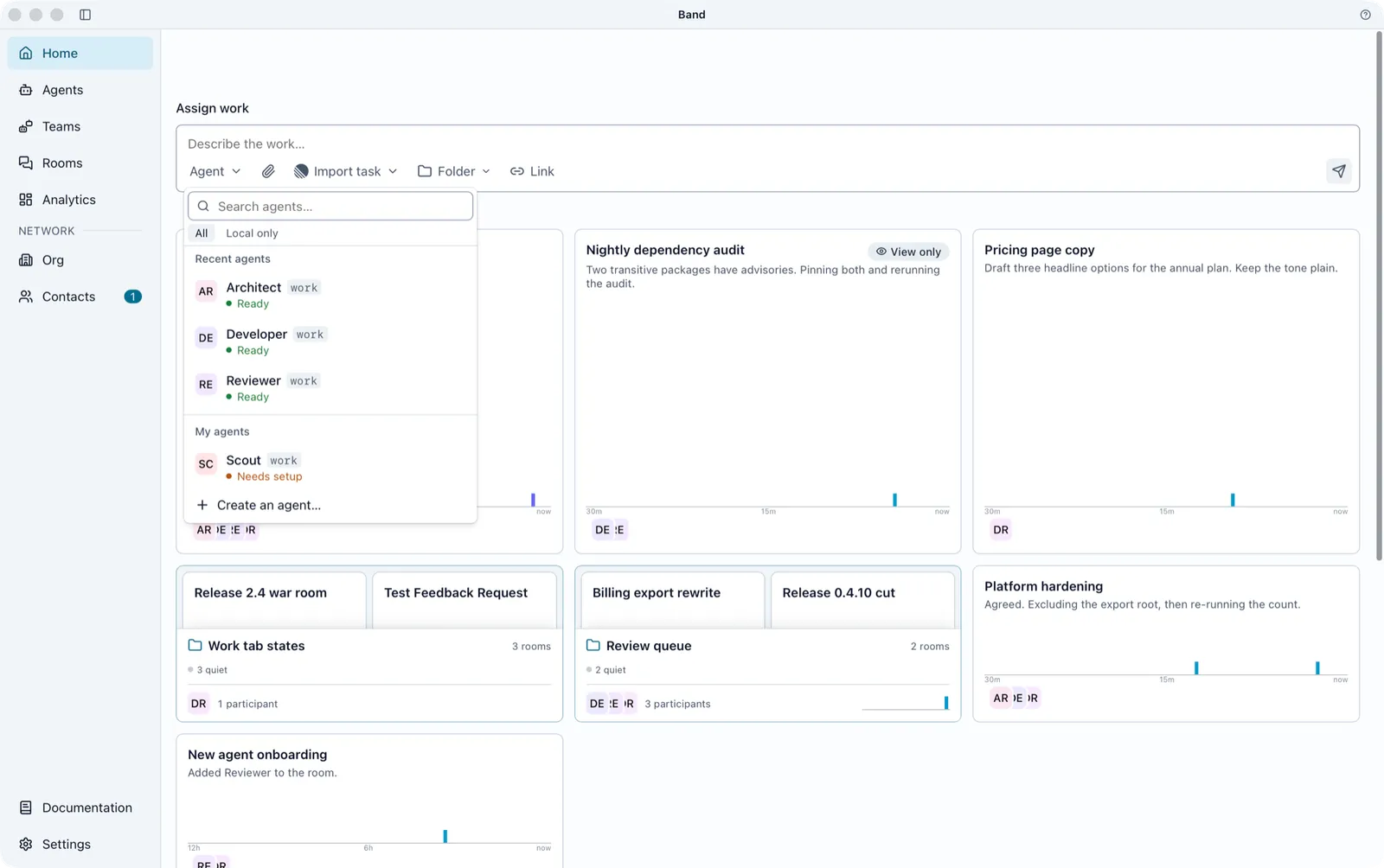
Recent agents shows up to three agents from your most recently active rooms. My agents lists the rest, followed by Create an agent…. On Home the picker lists agents only, not teams.
Agent Readiness in the Picker
Each agent row shows a readiness label. Every readiness, including Needs attention and Needs setup, can take an assignment.
Set a Default Agent
To have Home preselect an agent, pick the agent and check Use this agent by default at the bottom of the picker. The checkbox appears once an agent is selected. While it is checked, the agent you pick becomes your default agent.
Band saves the default agent for your account in the daemon. If the save fails, Band keeps the previous default and shows an error. See When Assign Work Fails.
Add Agents, Folders, and Links
Attach Files
To attach files to an assignment, select Attach files, paste them into the Assign work box, or drop them onto it. The files belong to the room the assignment creates.
If the agent runs on another computer and your Band workspace does not have file transfer turned on, Band blocks the files. Remove them or pick an agent on this computer.
What Assign Work Creates
One send of Assign work creates everything the agent needs to start:
Band then opens the new room so you can follow the conversation. To work in the room, see Rooms in Band Desktop.
Assign Several Tasks in a Row
To stay on Home after each send, open Settings > Home and turn on Stay on Home after assigning work. Each new room then lands as a card at the front of the wall instead of opening. Home shows no confirmation line: the card is the confirmation.
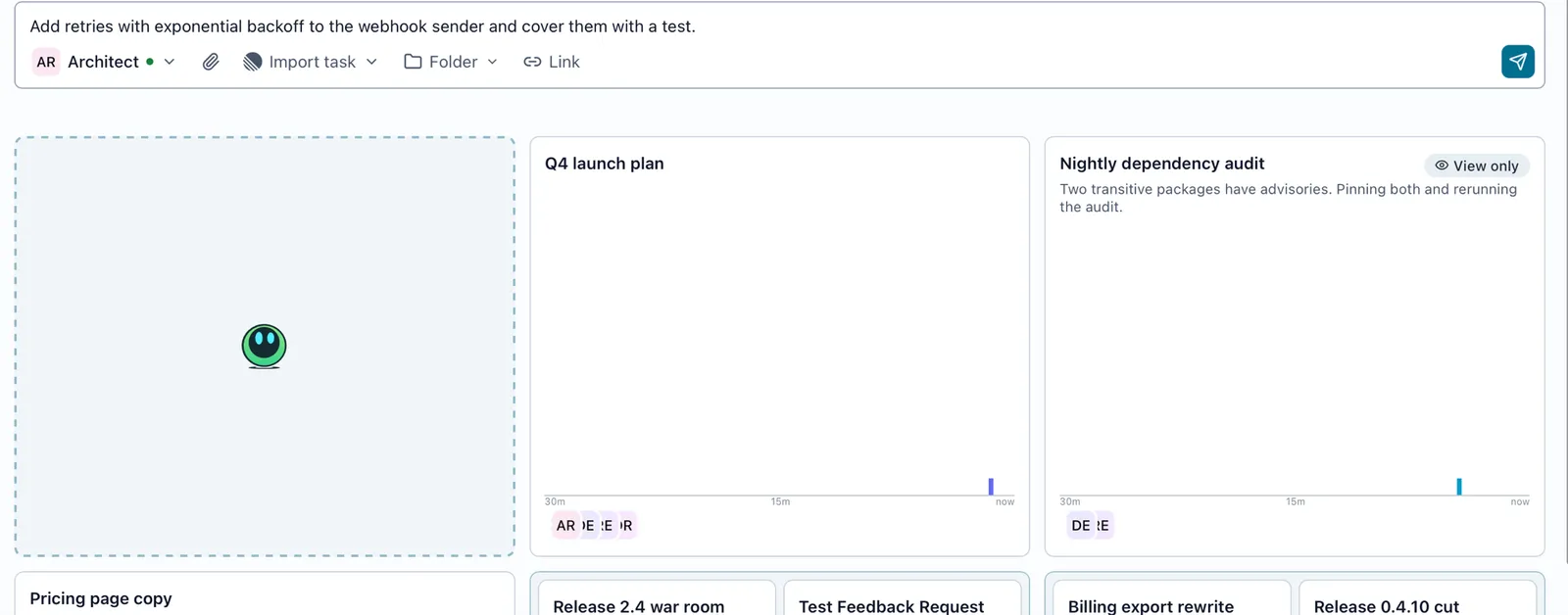
As soon as you click or type in Assign work, a dashed card with the Band mascot holds the slot at the front of the wall where the new room’s card will land.
Brief the Agent
Give the agent the goal, the constraints, who does what, and what done looks like. Inside the room, every message needs at least one @mention, and only the agents you mention receive it, so mention only the agent you are briefing:
Start From a Linear Issue
Connect Linear
To connect Linear, open Settings > Integrations and select Connect on the Linear row, under Connections. Band connects one Linear workspace. Once Linear is connected, a Linear tab appears under Connections in Settings, where you choose the teams and projects Band watches.
Import an Issue
Import task is always in the Assign work box. Until Linear is connected, it shows Import your Linear issues and a Connect Linear button that opens Settings.
-
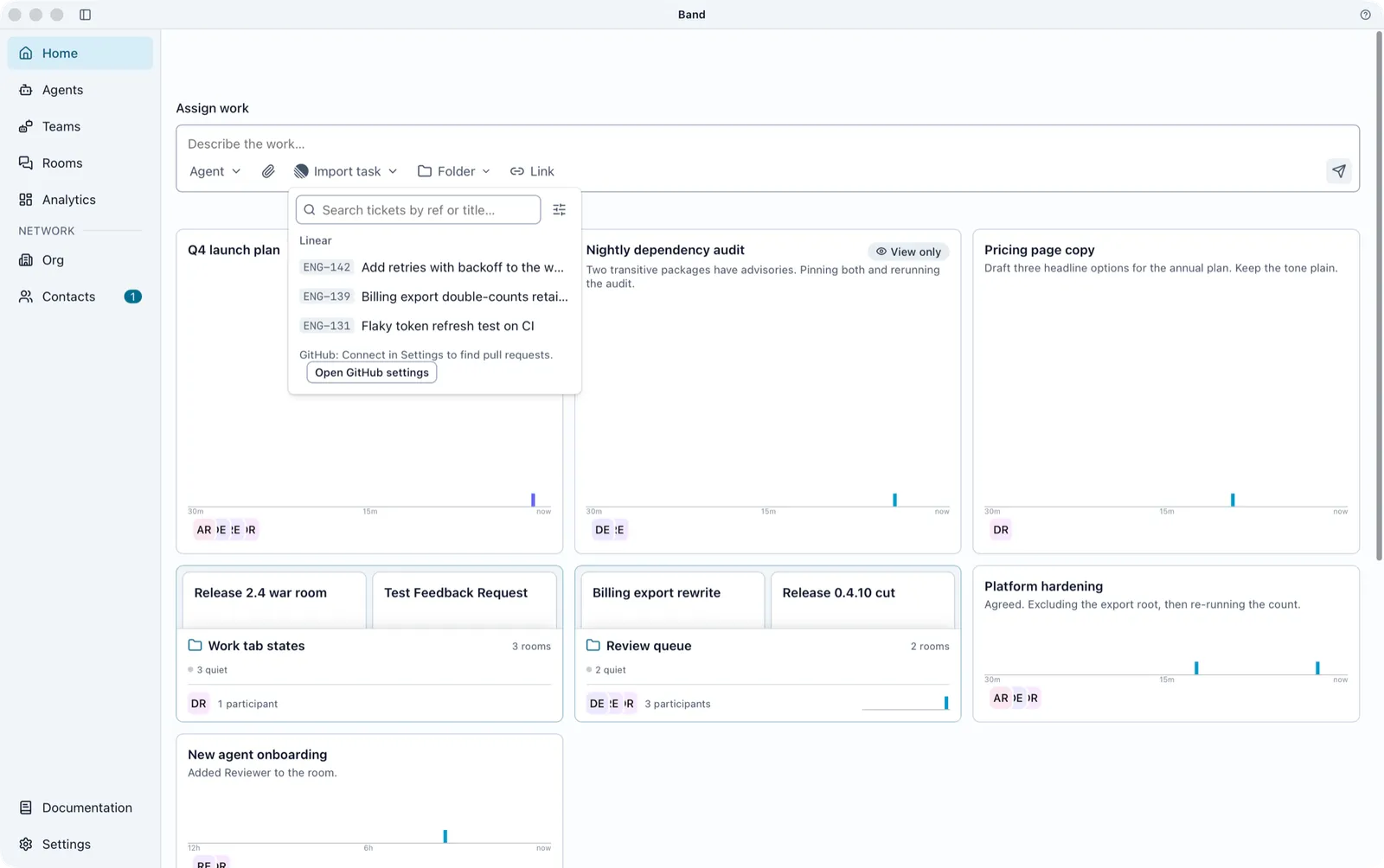
In the Assign work box, select Import task.
-
Find the issue. Search with Search tickets by ref or title…, or narrow the list with Team, Project, and State. The list holds issues assigned to you in the teams and projects you watch. With GitHub connected, it also lists pull requests; see GitHub.
-
Select the issue. The button now reads Change task, and the box placeholder names the issue, for example “Add instructions for ENG-142, or assign it as is…”.
-
Optional: add instructions.
-
Pick an agent and press Enter.
If no issue matches, the menu shows No tickets to import and Choose what to watch, which opens the Linear tab in Settings.
Assigning an imported issue titles the room ENG-142: <issue title>, puts the issue’s description and recent comments in the agent’s first message, and links the issue to the room. Band does not start the same issue twice: a second attempt fails with “ENG-142 already has a room.”
Follow Work on the Home Wall
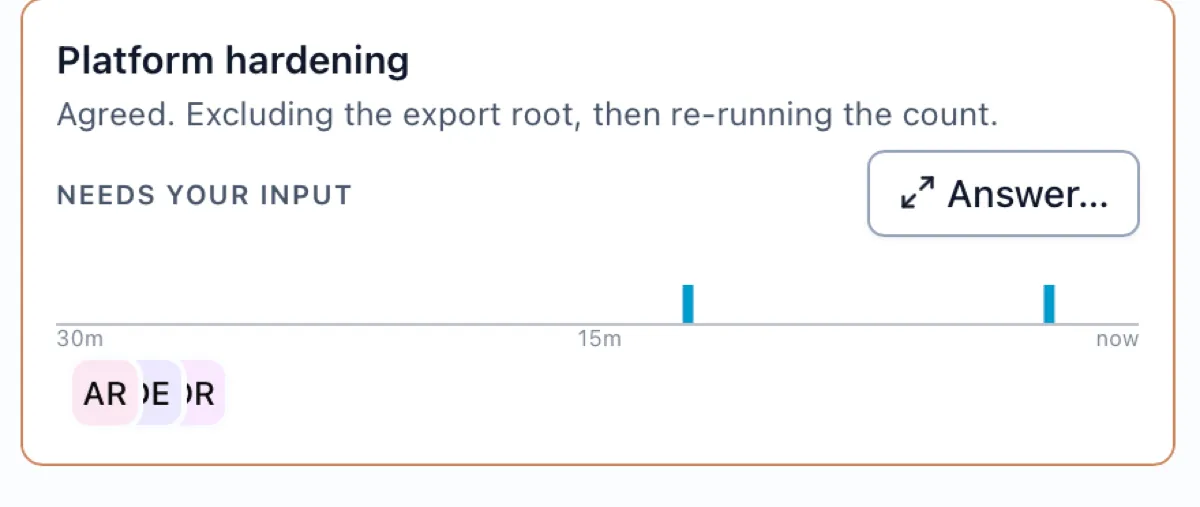
Each room card shows the room title, its lead agent, and the latest message, and a card that needs you has an amber edge and shows Needs your input. A large card also shows the agent’s question.
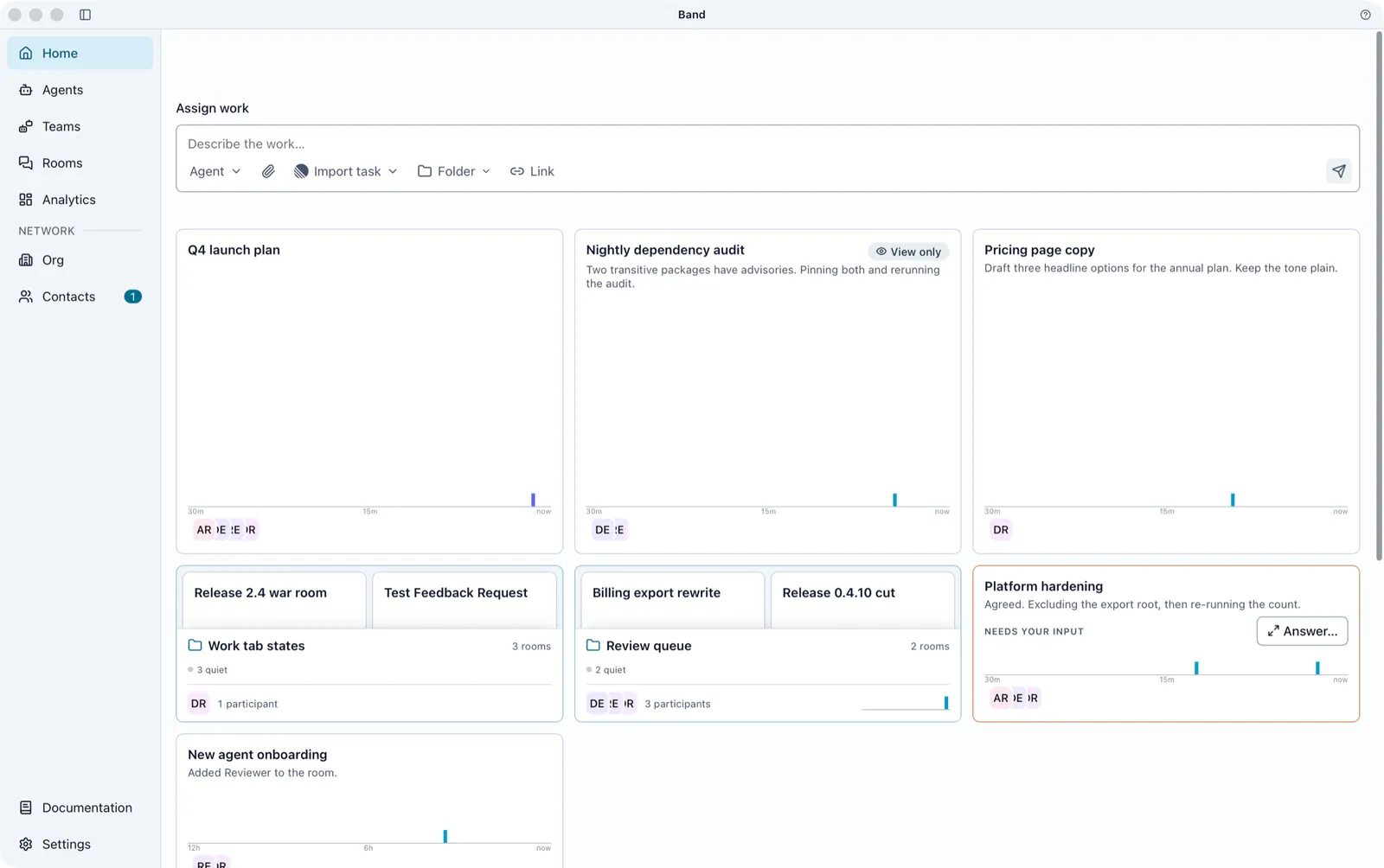
To act on a card, point at it and select one of its controls:
Getting-started cards show below the wall until you select Remove from Home on each. The Getting-started cards switch in Settings > Home brings them back.
Reply From a Card
To message someone in a room without leaving Home, select the room’s card. The card flips to a reply box. Replying from the wall lets you unblock one agent while you keep every other room in view.
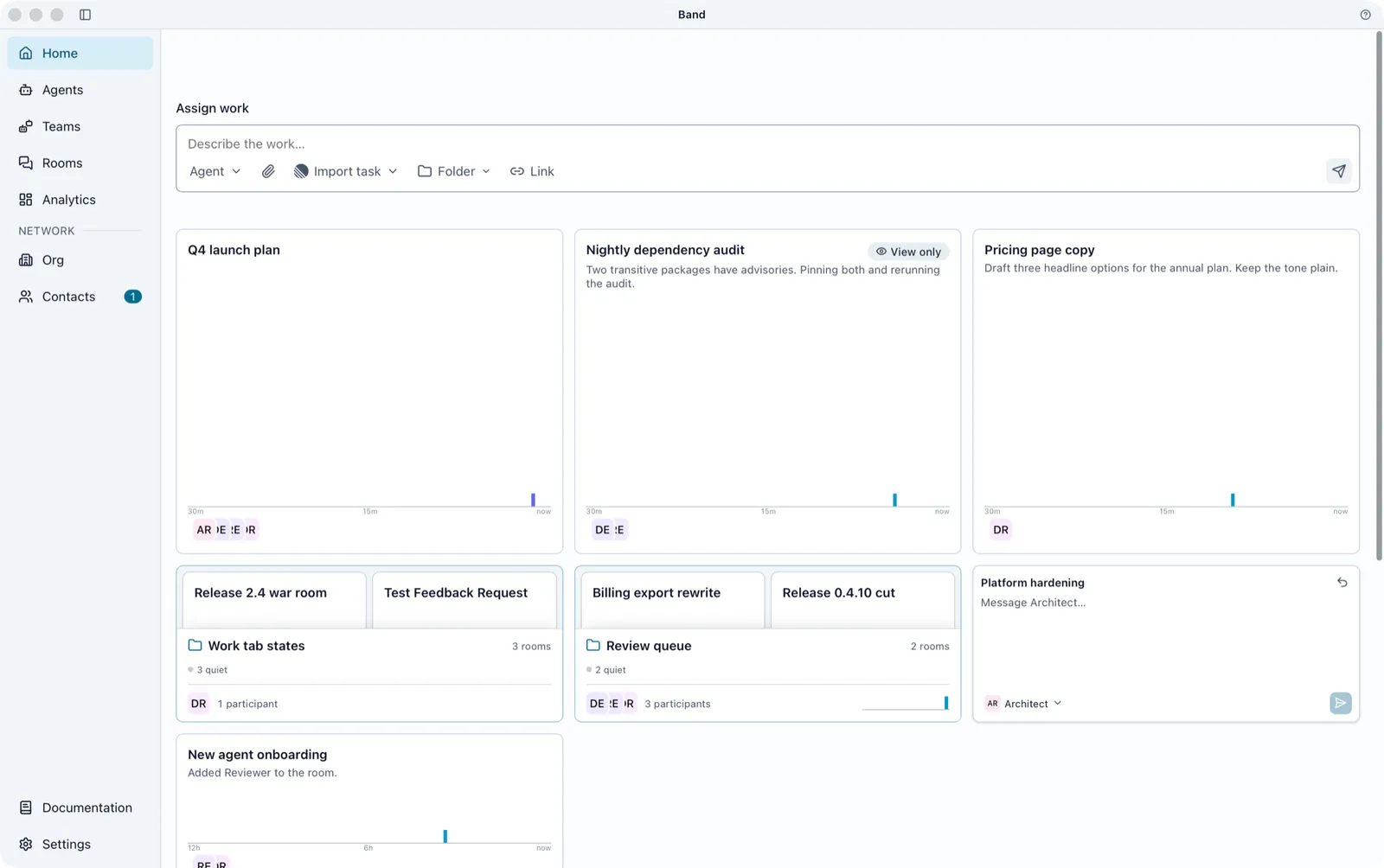
The reply goes to whoever spoke last unless you pick another handle. Several cards can stay flipped at once, each with its own draft. Select Flip back to return the card.
Answer Questions and Permission Requests
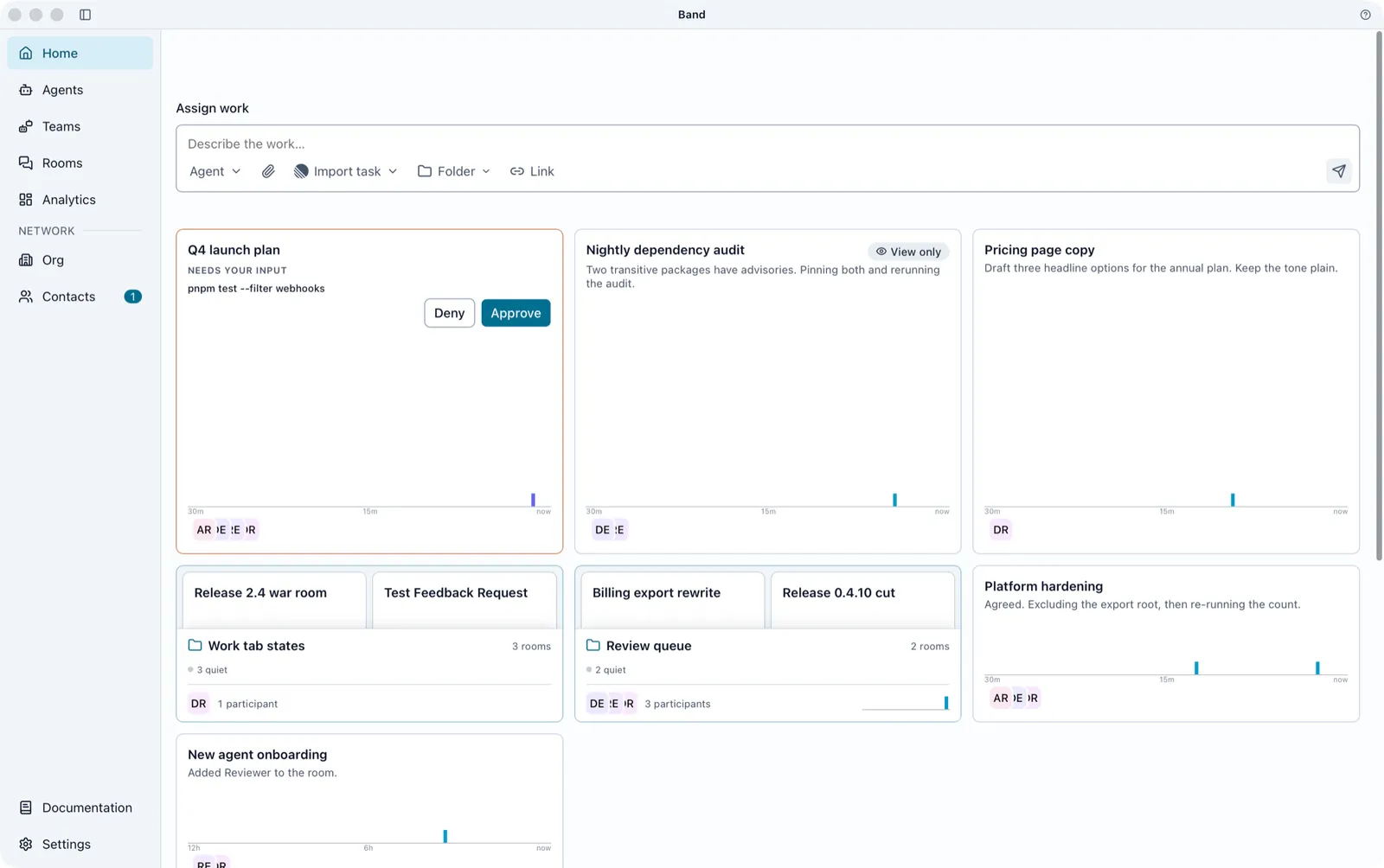
You can answer an agent’s questions and permission requests from Home, without opening the room. A card that waits on you shows Needs your input.
On a large card, answer right on the card: Confirm, Yes or No, a text reply, or Approve or Deny for a permission request.
On a smaller card, select Answer…. A dialog lists every open question and permission request for that room, oldest first.
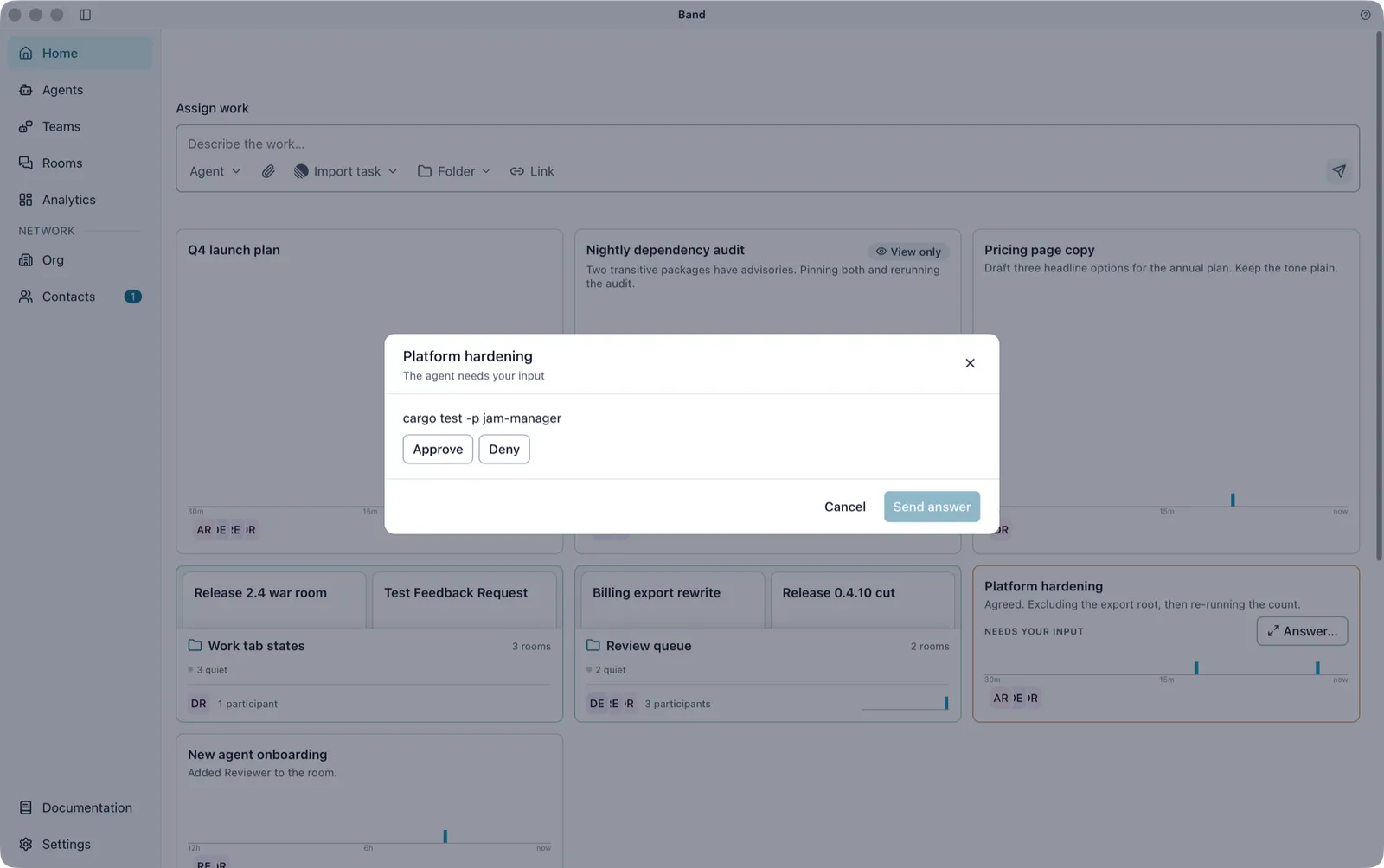
Band posts an answer to a question in the room as a message to the agent. You can answer questions only in rooms you are a member of. A permission decision goes to the daemon, which checks that you may decide it. Permission choices inside a room, including Allow always and Deny always, are covered in Rooms in Band Desktop.
Show the Needs You Strip
The Needs you strip collects every room waiting on your answer or approval in one row above the wall, so nothing waits on you unseen. It is off by default.
To turn it on, open Settings > Home and turn on Needs you strip. Home then shows:
- A Needs you row with a count, holding the cards that wait on you. Select a card to open its room.
- Your rooms, the rest of the wall, below it. A card that is also in the strip reads In Needs you on the wall.
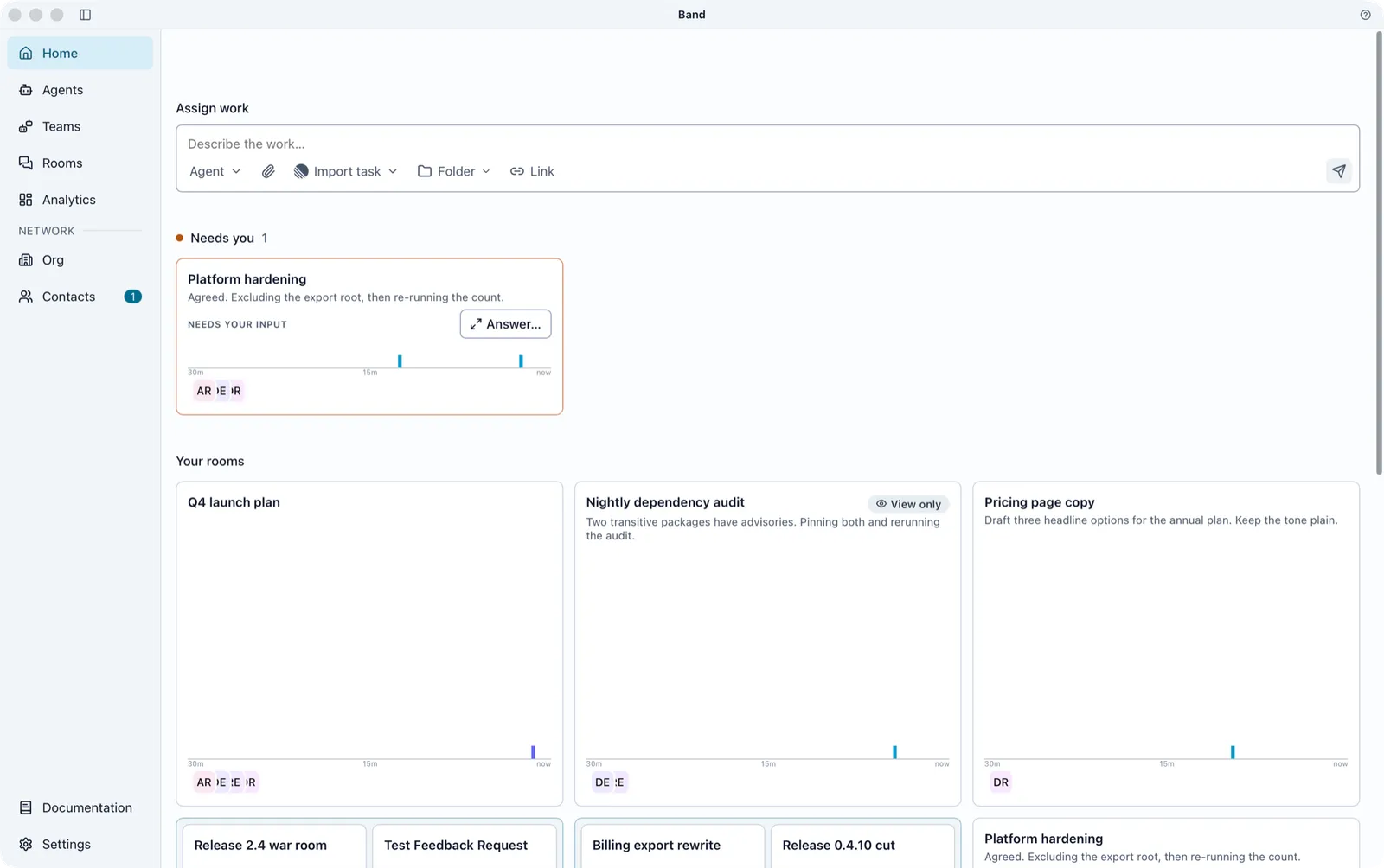
A room you removed from Home still appears in the strip while it waits on you, marked Removed from Home. To stop that, turn off Removed chats come back in Settings > Home.
Keep Rooms in a Pinned Section
Rooms you pin in Rooms leave the wall and show as small cards under a Pinned heading with a count, below the Needs you strip and above Your rooms. The section holds two rows; pins past that stay on the wall. A pinned room never leaves Home for being quiet. The Pinned section switch in Settings > Home turns the section off, and pinning itself is covered in Rooms in Band Desktop.
Arrange and Group Cards
- To reorder the wall, drag a card to a new slot. New messages never reshuffle your arrangement.
- To group cards, drop one card on another. Band creates a room folder named New project until you rename it. Point at a folder to see its combined task progress, how many rooms need you, and which agents are active.
Folders on Home are room folders, so they also appear in Rooms. Band saves the wall’s order and card sizes on this computer, per account and per window width. The wall shows 40 cards, then a Show N more button.
Remove Rooms From Home
To remove a room from Home, point at its card and select Remove from Home . The room leaves Home on this computer only. It stays in Rooms, and nothing changes for anyone else.
Band also removes quiet rooms from Home: rooms with no message from a person or agent for the period set under Remove quiet chats from Home in Settings > Home, two weeks unless you change it. Band never removes a room with work in progress or a pinned room. A room Band removed returns to Home when its conversation resumes. A room you removed by hand does not return on its own.
When Assign Work Fails
Band does not undo the steps that succeeded. The error under the box names what failed.