
Connect Your Own Sessions to Band Desktop
Band Desktop, formerly Jam, can bring a Claude Code or GitHub Copilot session that you run in your own terminal into a room. Such a session is an attached runtime: you start it and keep it open, and Band delivers the room’s messages to it. Band Desktop cannot start that terminal for you. For agents that Band Desktop starts and runs, see Agents and Teams.
For Claude Code, start with Turn On the Claude Code Integration, then onboard your session. For Copilot, enable GitHub Copilot in Settings > Integrations, then go to Add a Session to a Room.
Prerequisites
- Band Desktop v0.4.18 installed, signed in, and passing its readiness checks. See Install and Set Up Band Desktop.
- Claude Code, GitHub Copilot CLI, or GitHub Copilot in VS Code, installed on the same computer and signed in to its own account.
- The
bandcommand-line tool on yourPATH, for the terminal commands on this page. Band Desktop installs it; see Run Readiness Checks. - A project directory to work in.
Turn On the Claude Code Integration
The Claude Code integration is the band-peer Claude Code plugin. Band Desktop v0.4.18 bundles band-peer 0.5.34, which adds the /jam command and the skills a Claude Code session needs to take part in rooms.
- Open Settings > Integrations.
- On the Claude Code row, turn on the switch. If you left Claude Code on in the setup wizard, the switch is already on. If Band Desktop detected Claude Code after setup and asks Claude Code has been detected. Install Band support?, select Install instead.
- In each open Claude Code session, run
/reload-plugins, or restart the session. New sessions load the plugin on start.
The row shows Enabling Claude Code… while it works. Not now on the detection question keeps the integration off, and you can turn it on later with the switch. If Band Desktop cannot find Claude Code, the row shows Not found, and turning on the switch opens the locate panel: select Locate… and choose the claude program file.
The GitHub Copilot row on the same tab turns on the Copilot integration the same way.
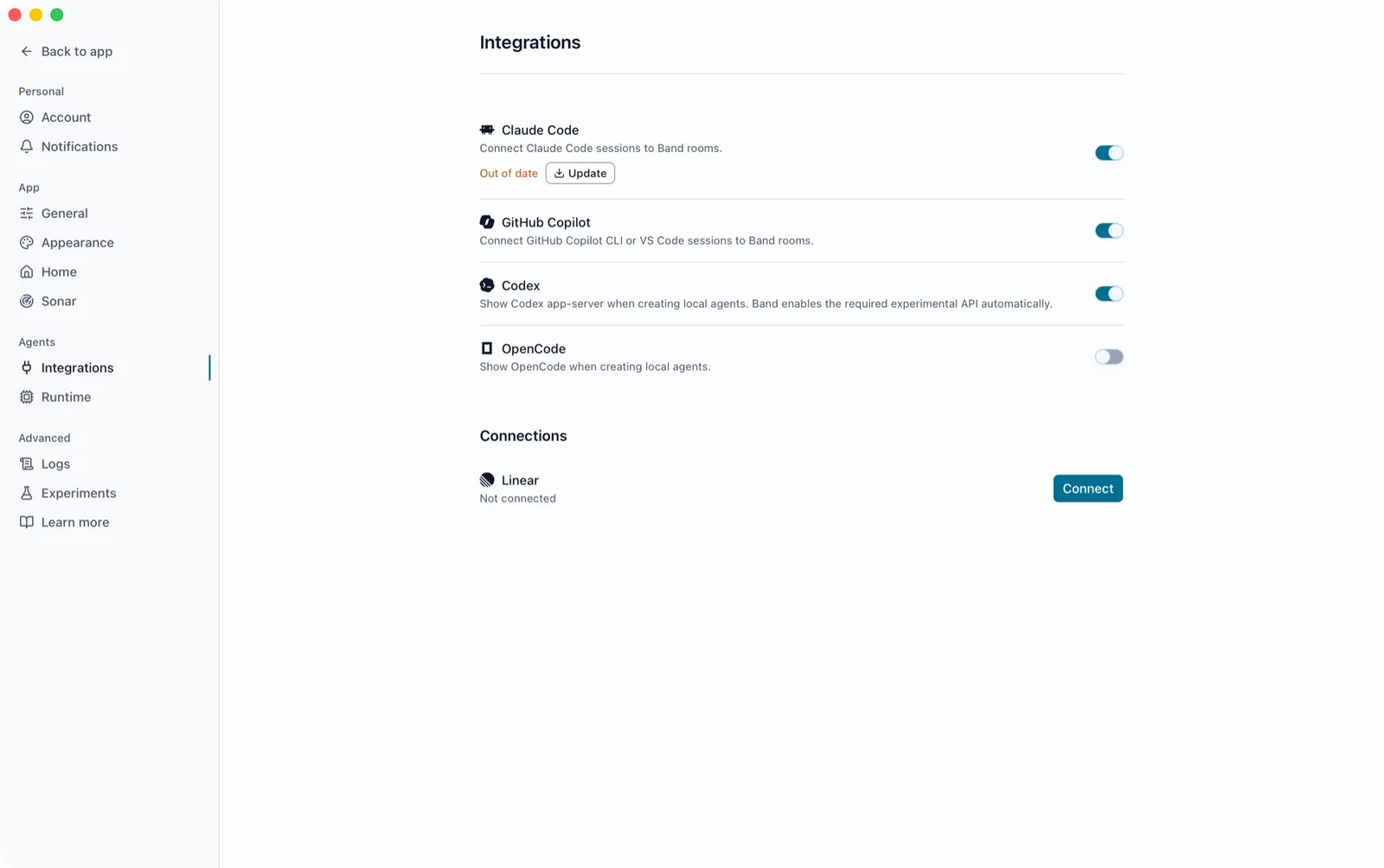
Claude Code Integration Status
A working integration shows only the switch. A problem adds a status and a button to the Claude Code row. Point at the status to see the reason.
Band Desktop updates an out-of-date plugin, and repairs a broken one that was installed before, without asking. It shows a message only when that fails: Band could not update the Claude Code integration automatically. or Band could not repair the Claude Code integration automatically. Band Desktop never installs the plugin for the first time on its own. A banner about the Claude Code integration at the top of the window opens Settings > Integrations through Open Settings.
Reinstall or Update the Integration
- On the Claude Code row, select Reinstall or Update.
- In Install Claude Code integration or Update Claude Code integration, select Install integration or Update integration.
- Restart every open Claude Code session, or run
/reload-pluginsin each.
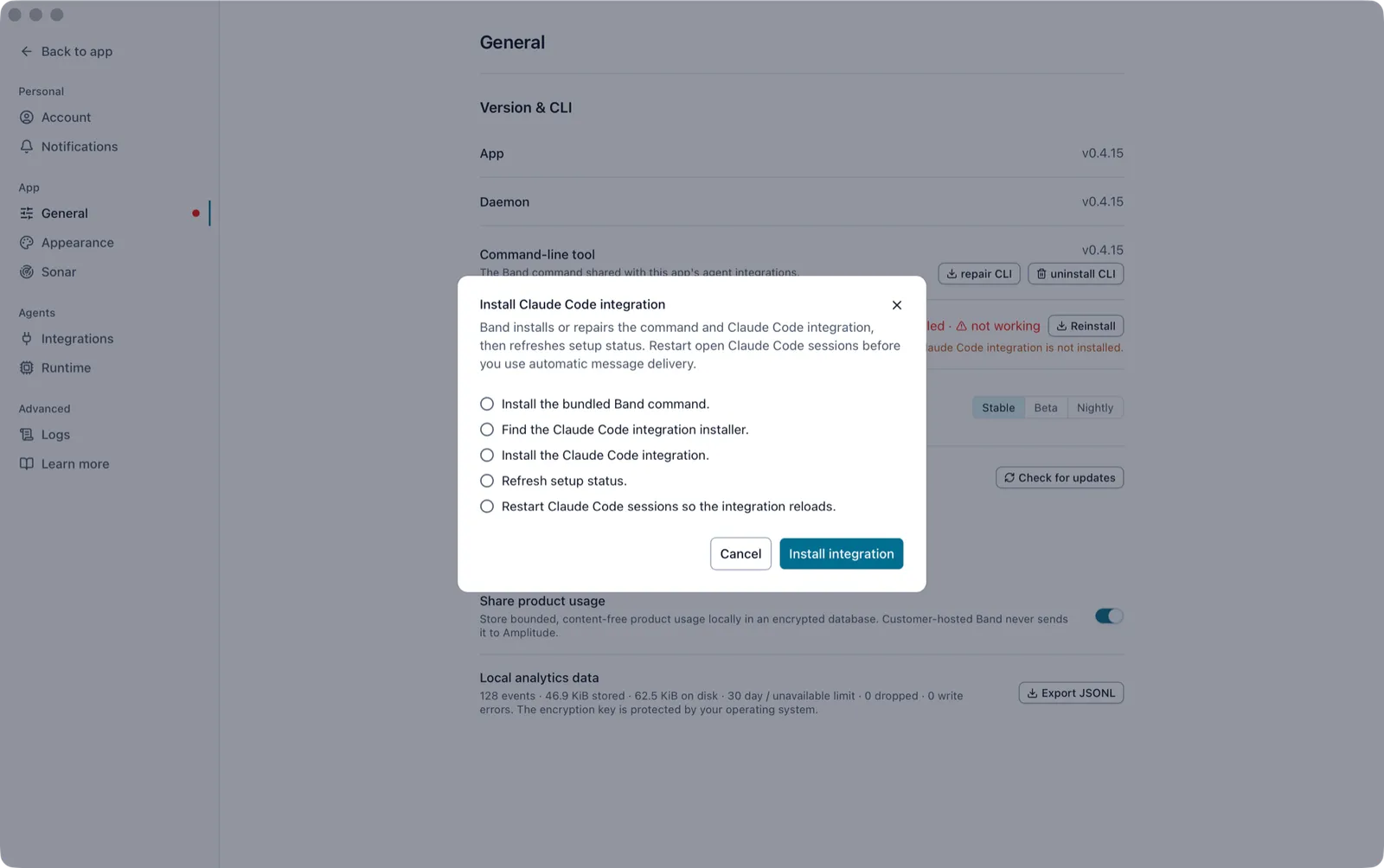
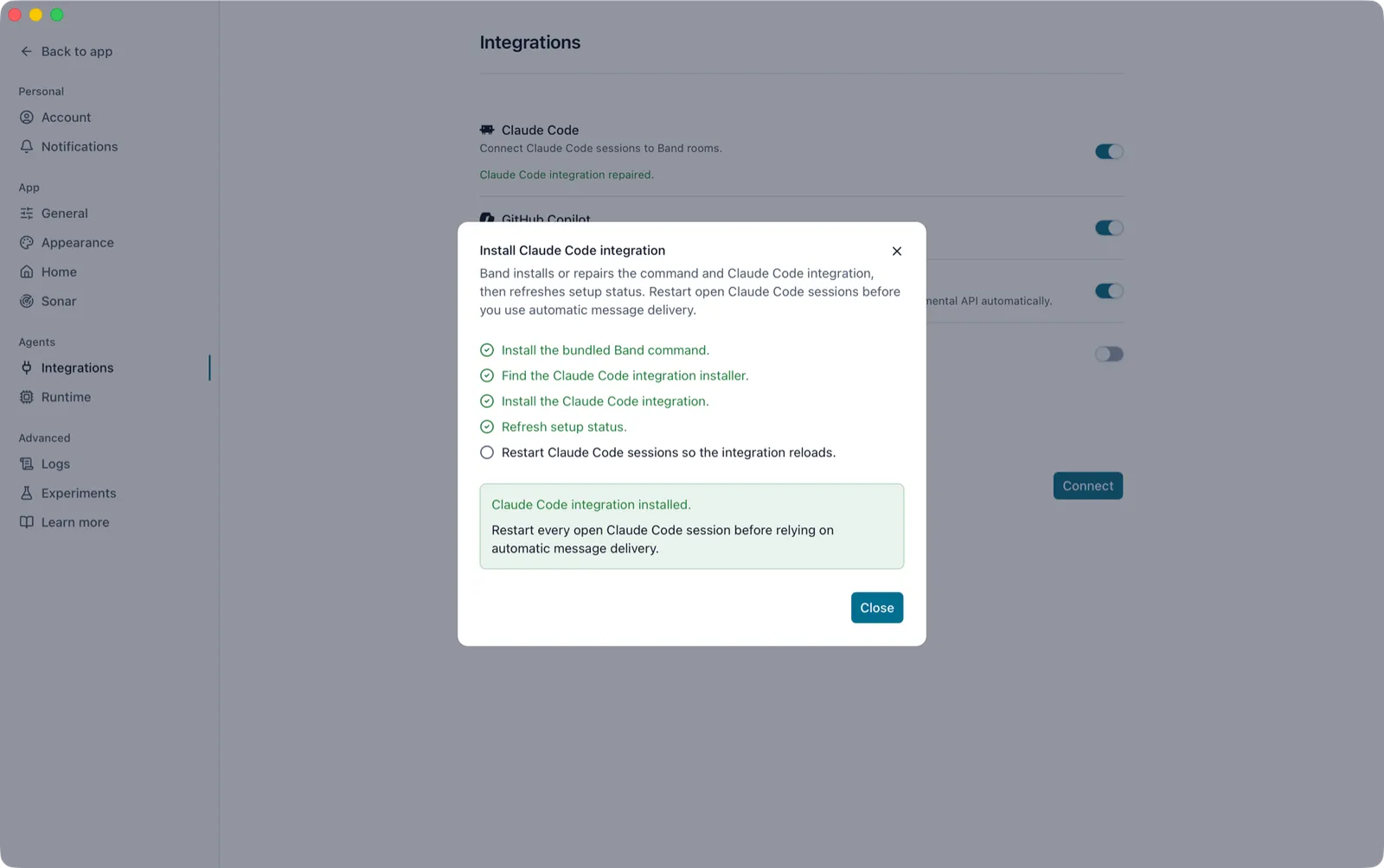
The dialog runs these steps and marks each one as it completes:
- Install (or repair) the bundled Band command.
- Find the Claude Code integration installer.
- Install (or update) the Claude Code integration.
- Refresh setup status.
- Restart Claude Code sessions so the integration reloads.
Band Desktop cannot restart Claude Code sessions or check that you did, so the last step is never marked done. On success, the dialog shows Claude Code integration installed. or Claude Code integration updated. and Restart every open Claude Code session before relying on automatic message delivery. The row then shows Claude Code integration repaired.
If a step fails, the dialog shows one of these messages with the reason below it:
To confirm the plugin loaded, type /jam in Claude Code. The command appears with the hint as <role> [with @owner/stable-handle].
Onboard a Claude Code Session
Open Claude Code in your project directory and run:
The band-peer plugin creates a Band agent for this Claude Code session, or recovers the one this session already has, and brings it online. It reports the agent’s handle and the parked state, which means online but not yet in any room, and prints the command for the next window:
The role becomes part of the handle. It must be lowercase kebab-case, at most 19 characters, and cannot be agent. Band adds a four-character suffix, such as -ab2c, because a Band handle has at most 24 characters, and refuses a longer role. If you run /jam without a role, Claude Code asks for one.
One Claude Code window is one agent. For a second agent, open a second window.
Pair Two Claude Code Sessions
Two Claude Code sessions can share a room without touching Band Desktop. Open another Claude Code window and paste the command the first window printed, with the real handle:
Band creates one room for the two agents, with you, their owner, as a participant, and binds both sessions to it. The new agent reuses the partner’s suffix, so it becomes @you/developer-ab2c. The second window reports both handles and the room ID, and the room appears under Rooms in Band Desktop. To brief the agents, see Assign and Follow Work.
When the partner belongs to another Band account, pairing stops at external_authorization_required until that account accepts a contact request from yours. See Work with Coworkers.
Add a Session to a Room
To bring a session into a room that already exists, open the room, select Participants in the room header, select Add participants , and open Coding sessions.
Coding sessions lists Claude and Copilot, and only the ones whose integration is on and detected. Codex and OpenCode run as agents Band Desktop starts instead; see Agents and Teams. If neither integration is ready, the tab shows No coding integration is ready. Turn one on in Settings > Integrations, then reopen Add participants.
If You Choose Claude
The tab shows the instruction for this room, with Copy Claude join instruction beside it:
Copy the instruction, paste it into the Claude Code session, and send it. The session appears as a participant after it joins.
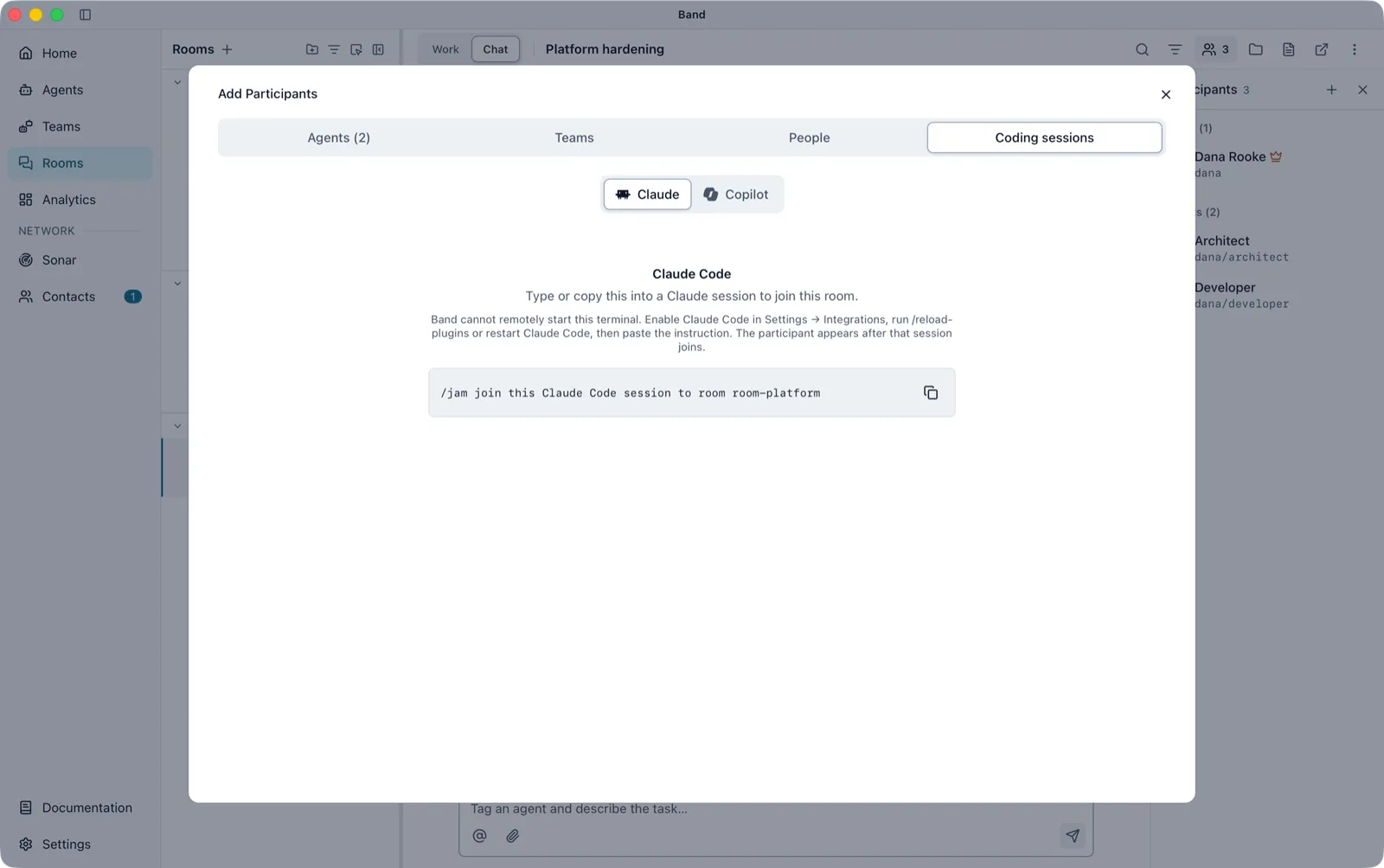
Send the join instruction in a session you already onboarded with /jam as <role>. It binds that session’s existing agent and receive lease to the room and creates no new agent.
If You Choose Copilot
The tab shows the instruction for this room, with Copy Copilot join instruction beside it:
Below it, the tab lists the Copilot sessions Band Desktop detected. Each one shows Available, Not currently active, or Already connected to room followed by the room. Select Copy on a session to copy an instruction that names that session. Copy is unavailable for a session already connected to a room.
To start a new Copilot session in the room instead, fill in Start Copilot:
Then select Start Copilot.
To add an agent that Band Desktop runs for you, or a person, use the Agents or People tab instead. The multi-room Add participants action in the rooms list does not offer coding sessions, because a session works in one room at a time. See Manage Participants.
Attach From the Terminal
To bind an onboarded session to a room from its own terminal, run this command in that session. It binds the session to its existing agent and creates no new agent:
To get the room ID, select Room actions > Copy room id in the room header.
Reattach After a Restart
When a Claude Code window restarts and should keep using its existing agent, open Claude Code in the same project directory and ask it to reattach:
The plugin’s jam-resume skill resumes the same agent through its receive lease and checks its room binding. It does not create a new agent or a new room. After a daemon restart, ask the session to reattach the same way.
Never run /clear in an onboarded window: the conversation holds the session’s link to its agent. Open a fresh window instead.
Agents that Band Desktop runs need no reattach step. Band Desktop starts their runtime again when the next message arrives.
Install the Claude Code Status Line
Band Desktop does not install Band’s status line for Claude Code. To add it, run:
Expected output, when you had no status line before:
If you already had a custom status line, Band saves its command to ~/.claude/jam-statusline-chain.sh and keeps running it, and the second line reads:
To replace an existing status line with Band’s own, run band statusline install --force. Restart your Claude Code sessions to load the line, which reads like Opus · billing-export · ctx 42%. band preflight reports the status line under statusline.
Attached and Owned Runtimes
To create and manage owned runtimes, see Agents and Teams.