
Agents and Teams in Band Desktop
Band Desktop, formerly Jam, runs coding agents on your machine for you. Add ready-made agents and teams from the Library, or set one up yourself, then choose how much each agent may do without asking.
Prerequisites
- Band Desktop installed and signed in. See Install and Set Up Band Desktop.
- At least one coding agent installed and signed in on this machine, such as Codex or Claude Code.
- To use Codex, GitHub Copilot, OpenCode, or Antigravity, the runtime turned on in Settings > Integrations. See Band Desktop Settings.
Add Agents from the Library
To add a ready-made agent, open Agents and select Browse Library. Under Predefined agents, choose a Runtime on the agent’s card and select Add.
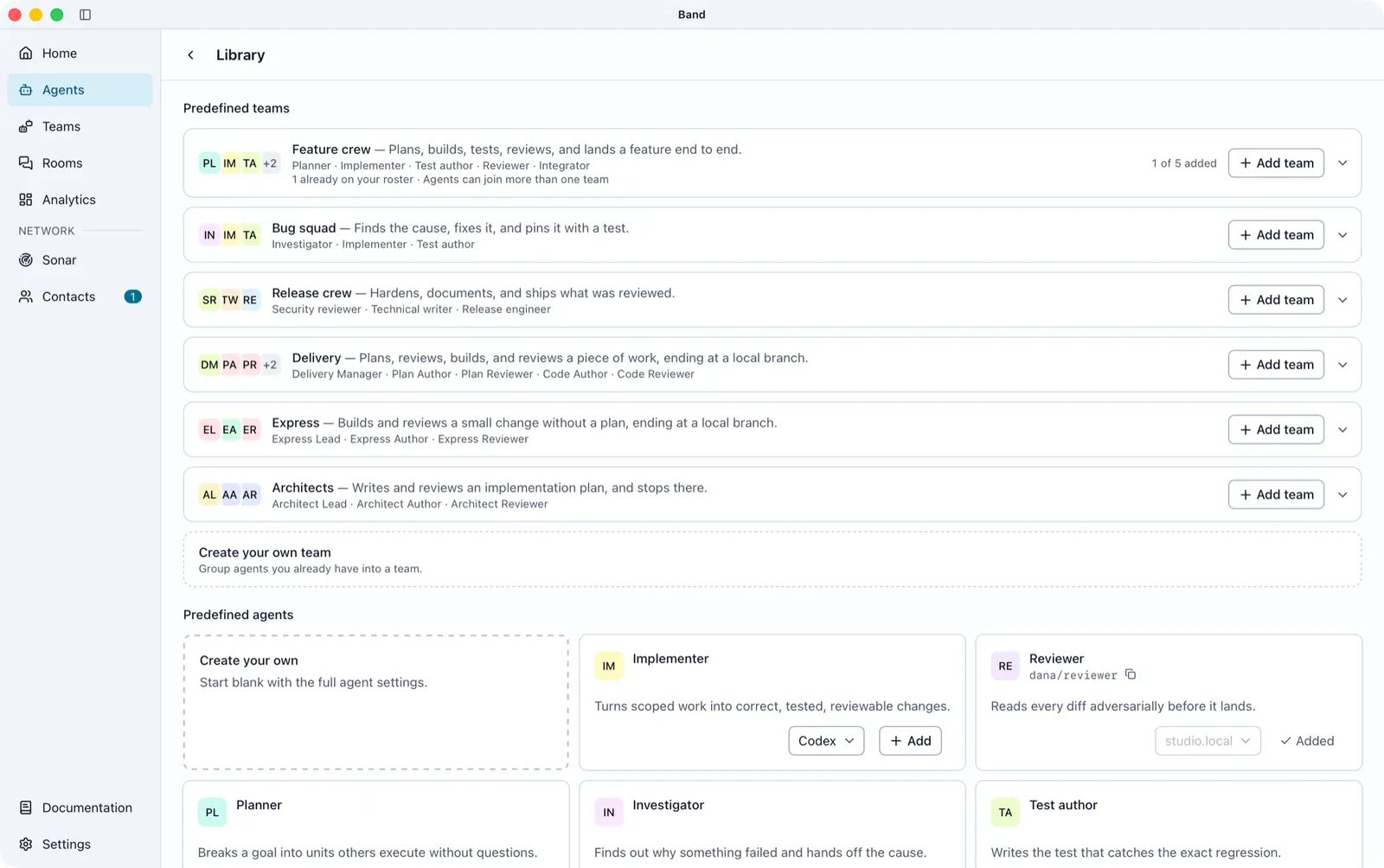
The 16 predefined agents are Implementer, Reviewer, Planner, Investigator, Test author, Security reviewer, Performance engineer, Integrator, Release engineer, Technical writer, Triage, Developer, Writer, Product manager, Architect, and Ops. The Runtime picker lists the runtimes this machine can run, in the order Codex, Claude Code, GitHub Copilot, ACP agent, then OpenCode. Codex, GitHub Copilot, and OpenCode appear only after you turn them on in Settings > Integrations. Band starts an agent added here when work arrives for it, so you never open a terminal for it.
An agent you already have is marked Added; select its card to edit it. If one of your own agents already uses the name or handle, Band numbers the Library copy, such as Planner 2 and planner-2.
Add a Ready-Made Team
Under Predefined teams, each member row has its own Runtime picker and Add, so members of one team can use different runtimes. Add team creates the members you do not have yet, and an agent can belong to more than one team.
While members are created, the button shows Adding N of M…, then View team. If a member fails, the button changes to Try again and the failed member shows Edit.
Create an Agent
To set an agent’s name, instructions, project folder, or model yourself, open Agents and select New agent. Nothing is created until you select Create agent on the last step.
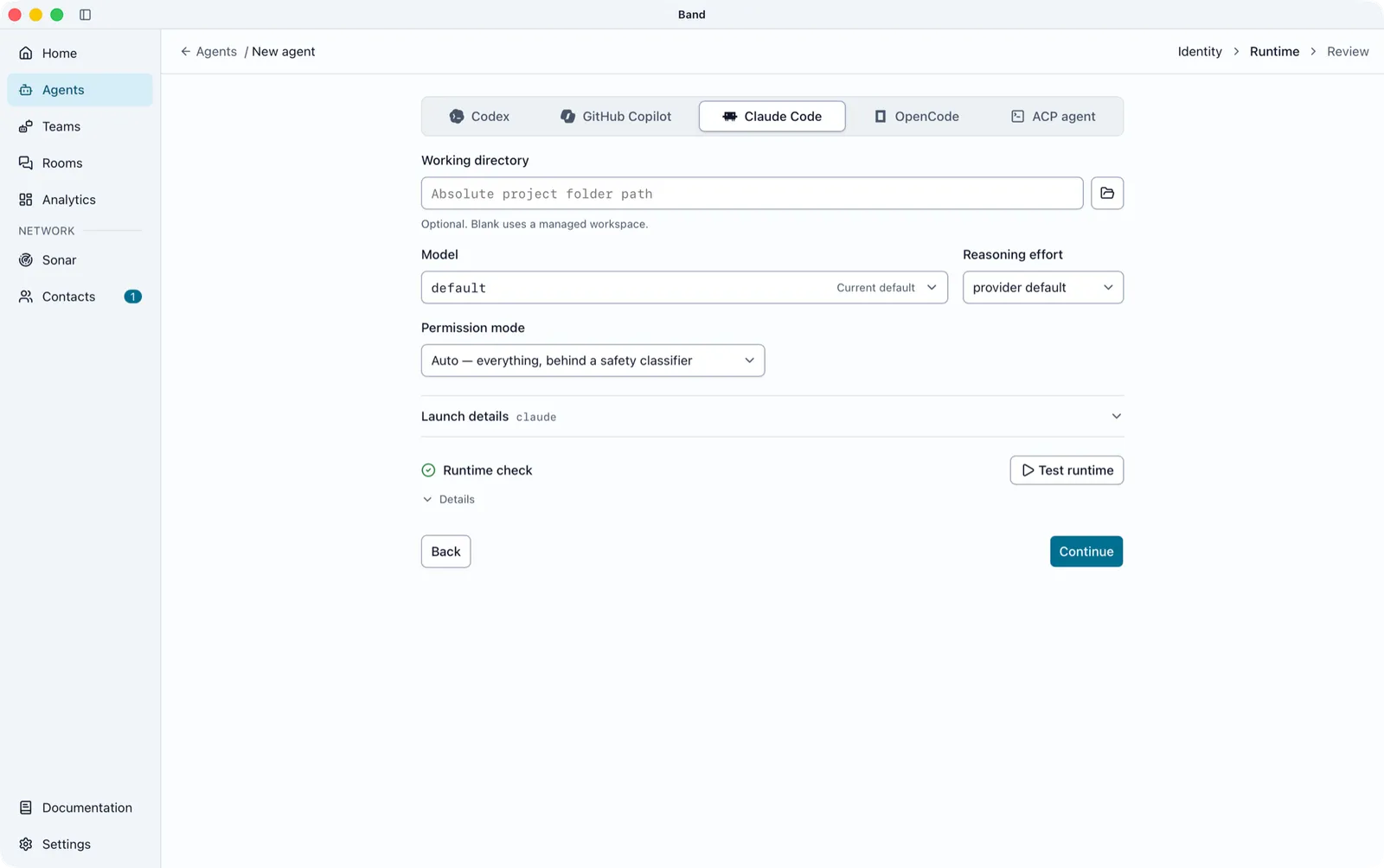
Runtime
Choose the runtime: Codex, GitHub Copilot, Claude Code, OpenCode, or ACP agent. The form starts on Codex. Codex, GitHub Copilot, and OpenCode appear only after you turn them on in Settings > Integrations. Antigravity appears as its own choice when Band detects it and you turn it on in Settings.
In Working directory, enter an absolute path to the project folder, or leave it blank to use a workspace Band manages. A relative path shows “Working directory must be an absolute path.”
Set the runtime’s options. They are listed per runtime below.
Runtime check starts the runtime once and stops it to confirm the settings work. It checks Runtime configuration, Local agent identity, and Workspace, plus Docker Sandbox for a sandboxed agent, and reports Ready., Ready, with a warning., or the failing part. To run the check again, select Test runtime (Connect for an ACP agent); after a failure the button reads Try again. If Band found the wrong program, select Choose the executable.
After Create agent, Band returns you to where you started, the Library, a team’s page, or the Agents list, and shows the toast “Security Reviewer added. It is on your Agents page.”
The Model picker offers Always follow the runtime’s default, for example Always follow Codex’s default. A new agent left on the default is saved with the runtime’s current default model, so a later change to that default does not change the agent. To track the default instead, choose Always follow explicitly. Runtime options take effect the next time the runtime starts.
If You Choose Codex
If You Choose Claude Code
If You Choose GitHub Copilot or OpenCode
If You Choose ACP Agent
The ACP agent field lists the ACP registry copy shipped with Band Desktop 0.4.18, with Custom command first. Each entry shows Tested by Band with a version, or not tested by Band, and Installed, Not installed, or Couldn’t check. Tested agents sort first.
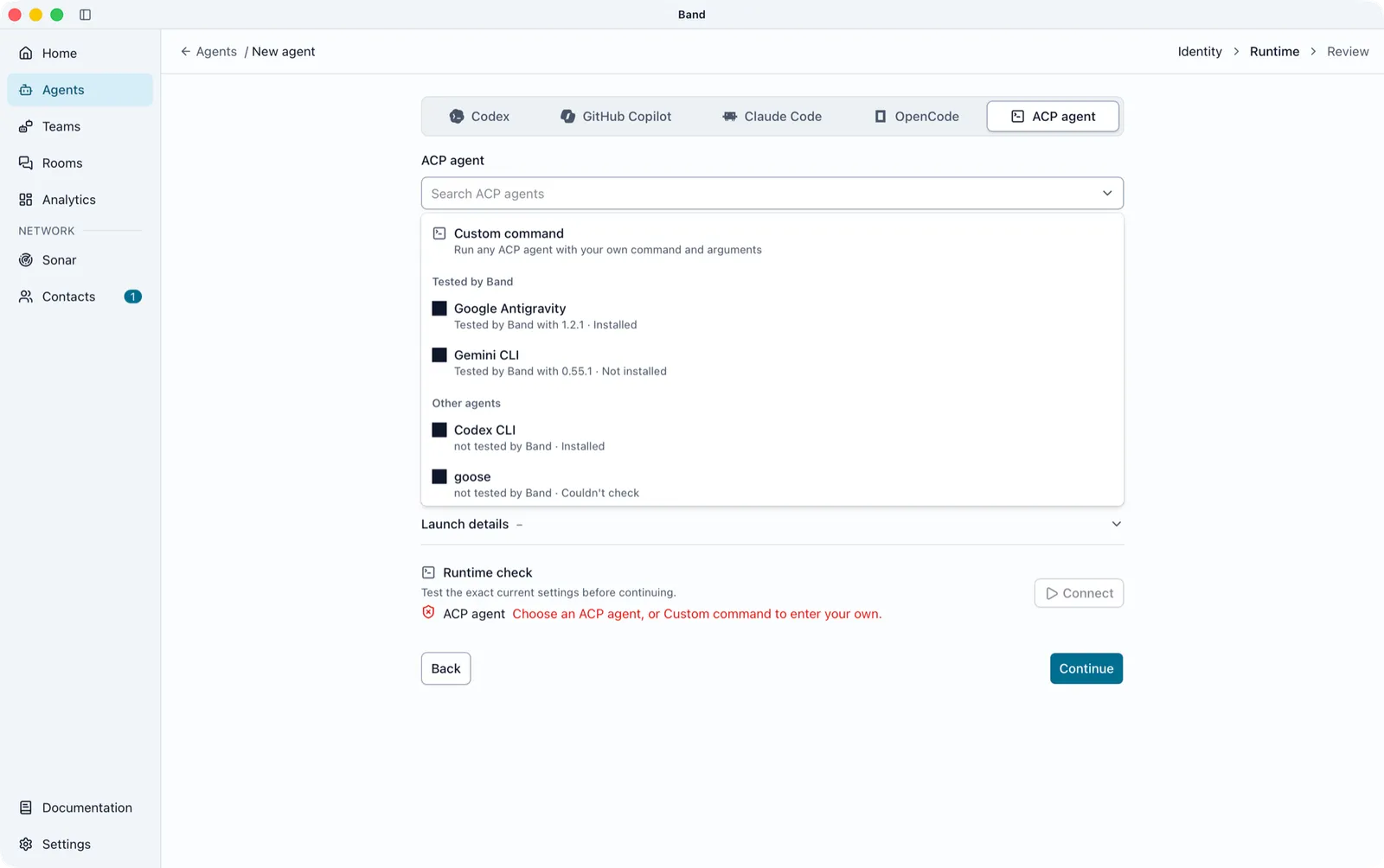
If the chosen agent is not installed, do one of the following:
- Run the install command Band shows, then select Recheck.
- Select Install, when Band can install the agent itself. Antigravity may then ask you to Sign in with Google.
- Select Locate… to pick an executable Band did not find.
- Select Use built-in to switch to a runtime Band runs directly.
The options below the picker stay disabled until the chosen agent is installed. An agent that needs environment settings is listed with “Needs environment settings Band can’t apply yet” and cannot be chosen.
Permission Modes by Runtime
Each runtime has its own setting for what an agent may do without asking you. A new agent starts with the value in the Starting value column. These settings apply to agents Band Desktop runs; for coding agents connected through the SDK adapters, see Approval Mode.
For Codex, approval and tool access are independent. Never ask runs operations that Codex tool access already allows and rejects sandbox escapes without prompting. It does not mean deny all or Full access.
The Claude Code Permission mode picker lists only the modes the runtime check reports as usable. Use the default (default) names the mode the runtime starts with when you pin none.
To clear every standing answer an agent holds, open the agent, select the Runtime tab, and under Standing answers select Remove all. Answering requests is covered in Rooms in Band Desktop and, from Home, in Assign and Follow Work.
Owned Runtimes
Every agent you add from Browse Library or New agent is an owned runtime: Band starts the coding agent process on this machine and restarts it with Restart agent. A session you start yourself and connect to Band is an attached runtime, covered in Connect Your Own Sessions to Band Desktop.
An owned Codex, GitHub Copilot, OpenCode, or ACP agent stops after 600 seconds without activity and starts again on the next message. It stays in its rooms while stopped. An owned Claude Code agent keeps running between messages. To change the idle time, set Stop idle agents after (seconds) in Settings.
Run an Agent in Docker Sandbox
To run one agent inside a Docker sandbox, open Launch details on the Runtime step and set Docker Sandbox:
Docker Sandbox requires Docker Sandboxes v0.47.0 or newer, with the provider’s credentials set up in Docker. A sandboxed Codex agent gets full access inside the sandbox, and Docker controls what it can reach on this machine. To run an SDK agent of your own in a Docker Sandbox instead, use the Docker Sandbox (sbx) Kit.
Agent Details
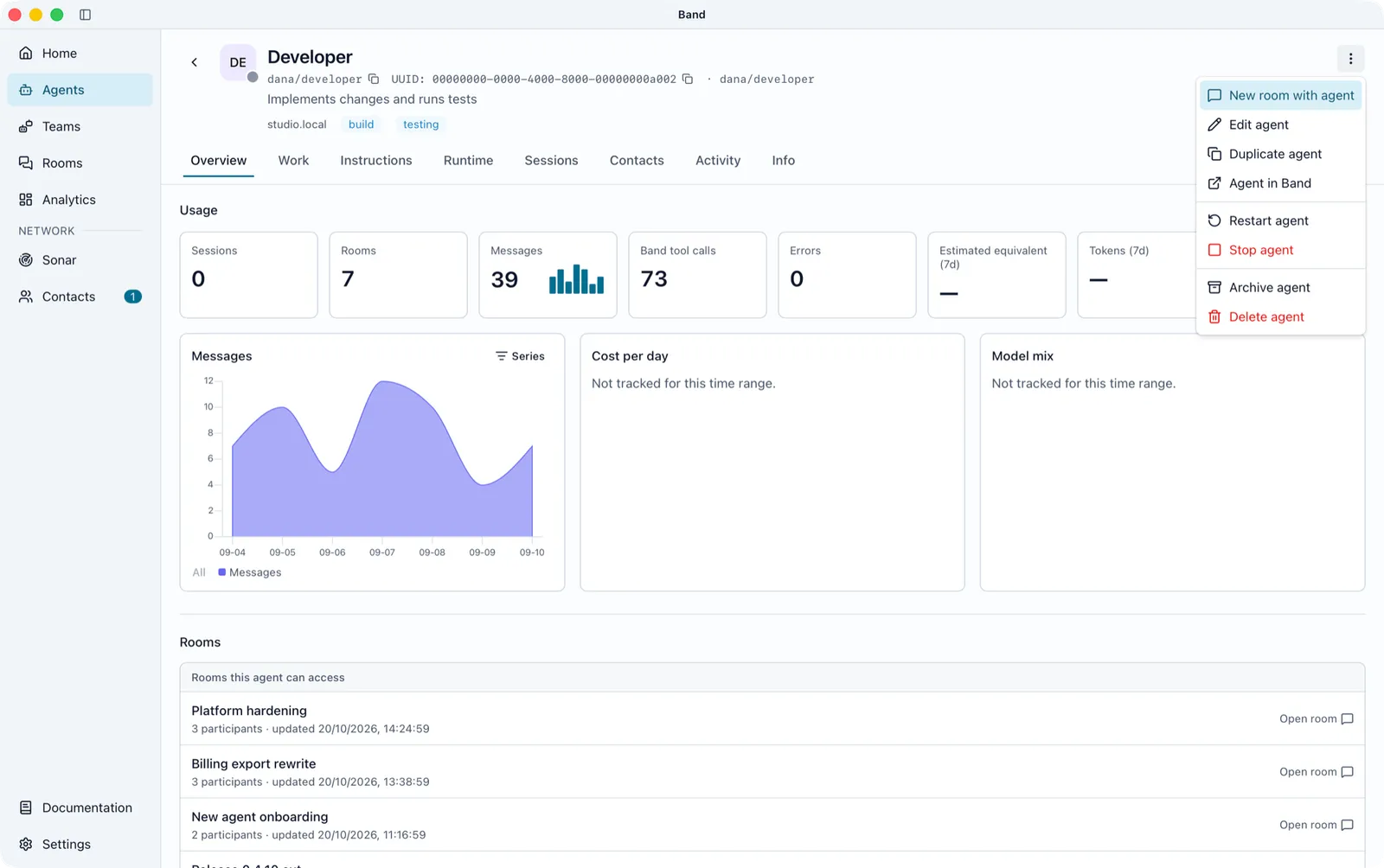
To open an agent, open Agents and select the agent’s card.
The Room activity feed setting on the Runtime tab controls whether the agent’s tool use and reasoning appear in its rooms: Use default, Nothing, Tool calls, or Tool calls and reasoning.
Restart or Stop an Agent
Open the agent and select Agent actions . The menu holds New room with agent, Edit agent, Duplicate agent, Agent in Band, Restart agent, Stop agent, Archive agent, and Delete agent, each shown when it applies. When another Band client owns the agent, Reclaim agent replaces Restart agent. Lifecycle actions are disabled while one is running.
- Restart agent restarts the agent worker and all of its owned runtime sessions. Attached sessions must be restarted in their own host.
- Stop agent asks Stop followed by the handle. Confirming with Stop agent ends the agent worker and all of its runtime sessions, and keeps the agent, its rooms, and its work. Restart the agent to bring it back online. Stop agent is disabled when the agent is already stopped.
To act on one room only, open the Sessions tab and open the row’s menu:
- Reset runtime recreates the owned runtime for that room and keeps the room binding.
- Unbind room stops that runtime session and removes its room binding, after you confirm.
To stop or resume an agent from inside a room, see Rooms in Band Desktop.
Change an Agent’s Settings
Do one of the following:
- Select Agent actions > Edit agent. The same three steps open with the agent’s settings filled in and end in What Band will save.
- Open the Runtime tab, change Settings, and select Save settings.
Runtime settings take effect the next time the runtime starts.
For an ACP agent, Runtime setup shows the agent, its reported version (Version unknown if it reports none), and a newer registry version when one exists. To switch to a different ACP agent, select Change agent…, then choose how Existing room sessions take the change: New sessions only, or Apply and restart N for the affected room sessions. Change agent… is unavailable for an agent in Docker Sandbox. Turn off Docker Sandbox for that agent, or create a new agent.
Agent Instructions
Instructions tell the agent its role. On the Identity step, set them in one of three ways:
To change instructions later, open the agent’s Instructions tab and select Choose another file, Remove file, or Clear, or edit the text. If the linked file is missing or unreadable, the tab shows Band can’t currently read this file. A runtime without saved-instruction support shows “This runtime does not support saved instructions.”
Duplicate, Archive, or Delete an Agent
All three actions are in Agent actions on the agent’s page.
- Duplicate agent asks for a name. Continue opens New agent with the source agent’s runtime setup and instructions filled in. Nothing is created until Create agent.
- Archive agent asks Archive followed by the agent name. Confirming removes the agent from Band Desktop and keeps its Band identity so you can restore it.
- Delete agent asks Delete followed by the agent name. Delete permanently removes the agent identity from your account and stops its runtimes. Rooms and messages stay, and the identity cannot be restored.
To restore an archived agent, open Agents, select Archived agents (N) at the bottom of the list, and select Unarchive on the agent’s card. The button shows only when at least one agent is archived.
Delete Several Agents at Once
- Open Agents and point at an agent in This machine.
- Select its checkbox. The header shows N selected, a checkbox to select every agent on this machine, Cancel, and Delete (N).
- Select more agents, then select Delete (N) and confirm Delete N agents?.
One delete takes at most 100 agents, and the header says so when you reach the limit. Agents that could not be deleted stay listed with the reason and a Retry N button.
Find Agents
The Agents list has two groups, This machine and External. To narrow it, type in Search agents… or use the filters:
Each agent card has its own Agent actions menu with Copy handle, Open agent, New room, and, for agents on this machine, Delete agent.
Create Your Own Team
To group agents yourself, open Teams and select New team. In Create a team, enter a Name and Description, pick the members under Agents on this team, optionally add Team guidelines, and select Create team.
A team’s page shows Members, Team guidelines, Edit team, and New room, which opens a room with the team’s members on your roster. Delete team is in the team’s Actions for menu . The Assign work picker on Home lists agents only, so to give a team work, select New room on its page and brief the members there.