
Band Desktop Settings
Settings holds the account, app, and agent options for Band Desktop, formerly Jam. Select Settings in the sidebar. Settings fills the window; to return, select Back to app or press Escape.
This page describes Band Desktop v0.4.18.
Settings Tabs
A dot on a tab means it has an outstanding issue or action. Your organization can hide tabs and lock controls; a locked control shows Managed.
Account
Account lists the signed-in account with a status badge: Signed in, Needs sign-in, Signed in on another device, Different server, or Signed out. With no account signed in, the tab shows the sign-in form. When your organization configures a Band server, a Band deployment section shows the Server.
Notifications
To choose which events notify you, open Settings > Notifications and set each category under Notification categories. These settings apply to this Band installation.
If an environment variable sets a category, its control is disabled with “Managed by an environment setting. Restart Band without the override to change it here.”
General
Version & CLI holds these rows:
For what each readiness row means and how to fix it, see Run Readiness Checks.
Product analytics > Share product usage controls product usage sharing. On Band’s hosted service it shares product usage with Band through Amplitude, excluding messages, prompts, files, paths, keys, and error reports. On a customer-hosted deployment it stores bounded, content-free usage in an encrypted database on this computer only, and a Local analytics data row offers Export JSONL. Disabled by administrator policy appears when your organization turns it off.
Appearance
Home
Home settings are stored on this computer only. For what each one changes on the wall, see Assign and Follow Work.
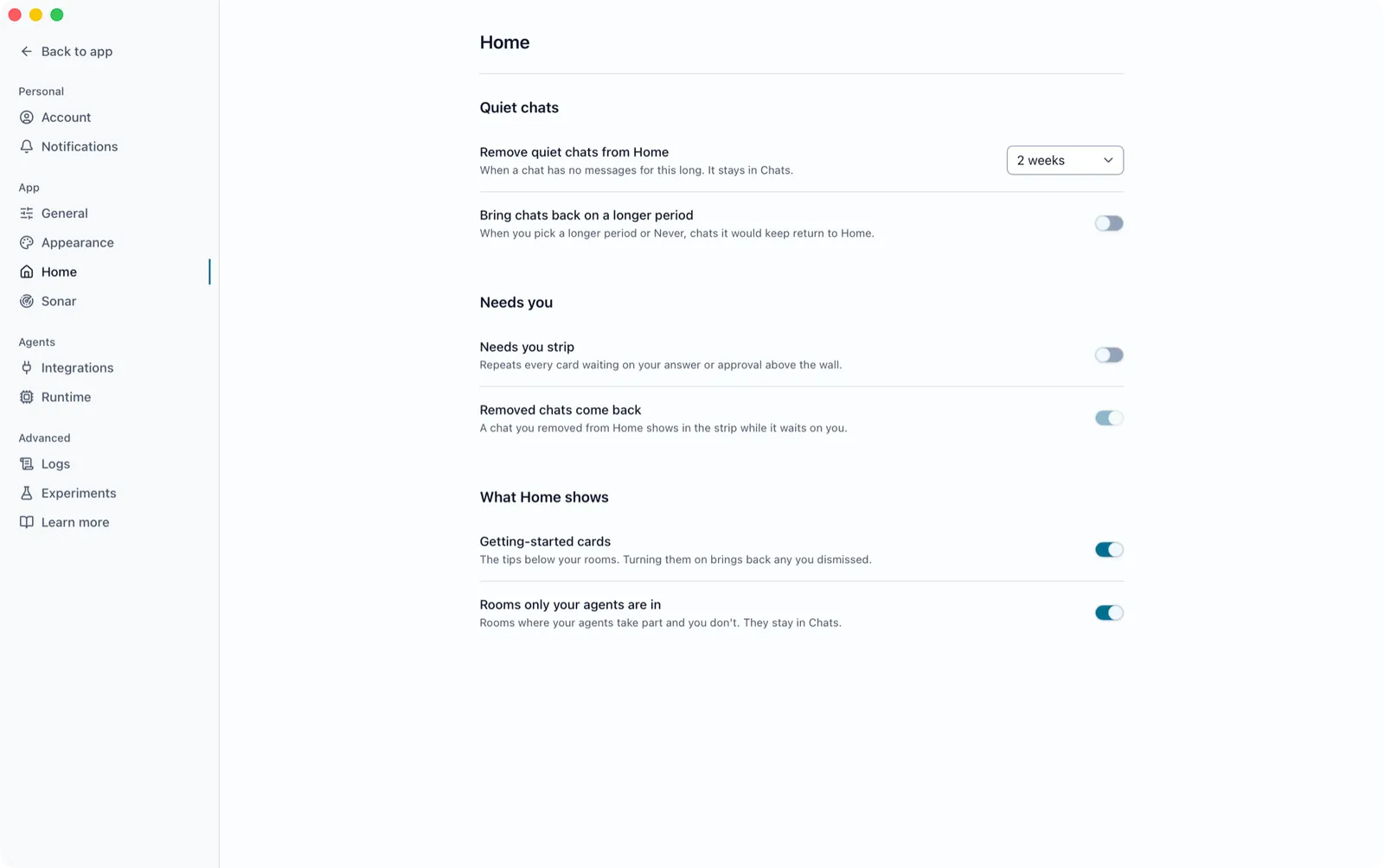
- Stay on Home after assigning work, turned on, puts each new room on the wall as a card instead of opening it.
- Remove quiet chats from Home removes a room with no messages for the chosen period. The room stays in Rooms.
- Bring chats back on a longer period returns rooms to Home when you pick a longer period or Never.
- Needs you strip repeats every card waiting on your answer or approval above the wall, and Removed chats come back shows a room you removed from Home in that strip while it waits on you.
- Pinned section shows the rooms you pin above your other rooms and keeps them on Home when they go quiet.
- Getting-started cards, turned on, brings back any tips you dismissed.
- Rooms only your agents are in, turned off, hides rooms where your agents take part and you do not.
Org
Org has one section, Visibility, with the Share room names and Share usage estimate switches, plus Discoverable while the Local network discovery experiment is on. All three are on by default, and a switch your organization sets shows Managed. For what each one shares and what coworkers see, read Control What the Org Page Shares.
Integrations
Integrations has a row with a switch for each coding agent, and a Connections section for Linear and GitHub. For the healthy state of this tab, see Run Readiness Checks.
Coding Agent Rows
Each row has a folder control that picks which copy of the agent Band connects. If you turn on a coding agent Band cannot find, Band opens that picker to locate its program first. When Band detects a new coding agent, its row asks a question such as “Claude Code has been detected. Install Band support?” with Install (Claude Code, GitHub Copilot, Antigravity) or Enable (Codex, OpenCode), and Not now, which keeps it off until you turn on its switch.
When the Claude Code integration needs repair, its row shows a status with a repair button; see Claude Code Integration Status.
If You Turn On Antigravity
With the Antigravity row on, Band installs Antigravity support and then asks you to sign in.
- Select Install. Band downloads and unpacks Antigravity support.
- Select Sign in with Google, then finish signing in to Google in your browser.
Connections
Under Connections, the Linear and GitHub rows read Not connected until you connect them, then show the account: Linear reads Connected to your workspace as your name, and GitHub reads Connected as your GitHub login.
Linear
The Linear tab appears in the sidebar once Linear is connected. Its header names the connected workspace and offers Disconnect, plus Reconnect when the connection needs attention.
To start a room from a listed issue on Home, see Assign and Follow Work.
GitHub
The GitHub tab appears once GitHub is connected, with the same header as Linear.
Runtime
Runtime sets defaults for new agents. An agent’s own settings take precedence. Select Save defaults to save the tab. To change one agent, see Agents and Teams.
Agents
Approvals and Questions
For how a request looks in the room and what each answer does, see Decide Permission Requests.
Docker Sandboxes
For what a sandbox isolates, see Docker Sandbox.
Logs
For when to send a support bundle, see Troubleshoot Band Desktop.
Experiments
Experiments lists optional features. Each is off by default and can change or be removed in a later release. To turn one on, open Settings > Experiments and turn on its switch.
Usage and Cost in Analytics
Usage and estimated cost are in Analytics in the sidebar, not in Settings. Analytics has two tabs:
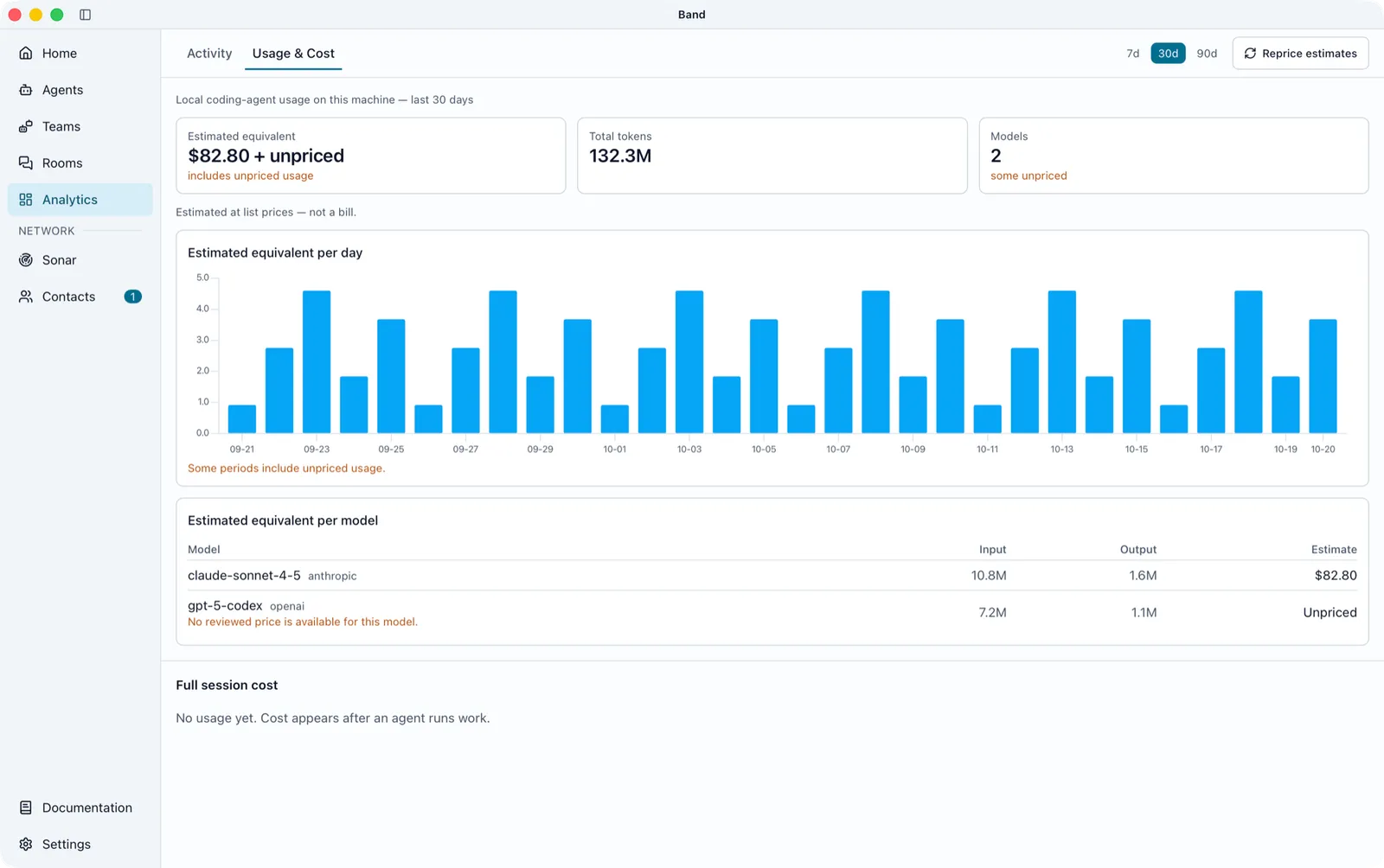
Usage Band Desktop has no price for appears as Unpriced, or adds + unpriced to the estimate, never as $0. A panel with no measurement reads Not tracked yet. To recalculate estimates with this version’s pricing catalog, select Reprice estimates.