
Troubleshoot Band Desktop
Fix sign-in, CLI, daemon, startup, and message delivery problems.
Use this page when Band Desktop, formerly Jam, or a Claude Code session connected to it does not behave as Install and Set Up Band Desktop describes. Most fixes start in Settings > General, under Version & CLI. To check the daemon, your account, and your agents from a terminal, run band doctor, as described in Confirm Readiness.
Band Desktop Cannot Find the CLI
Open Settings > General. The Command-line tool row names the problem and offers the fix:
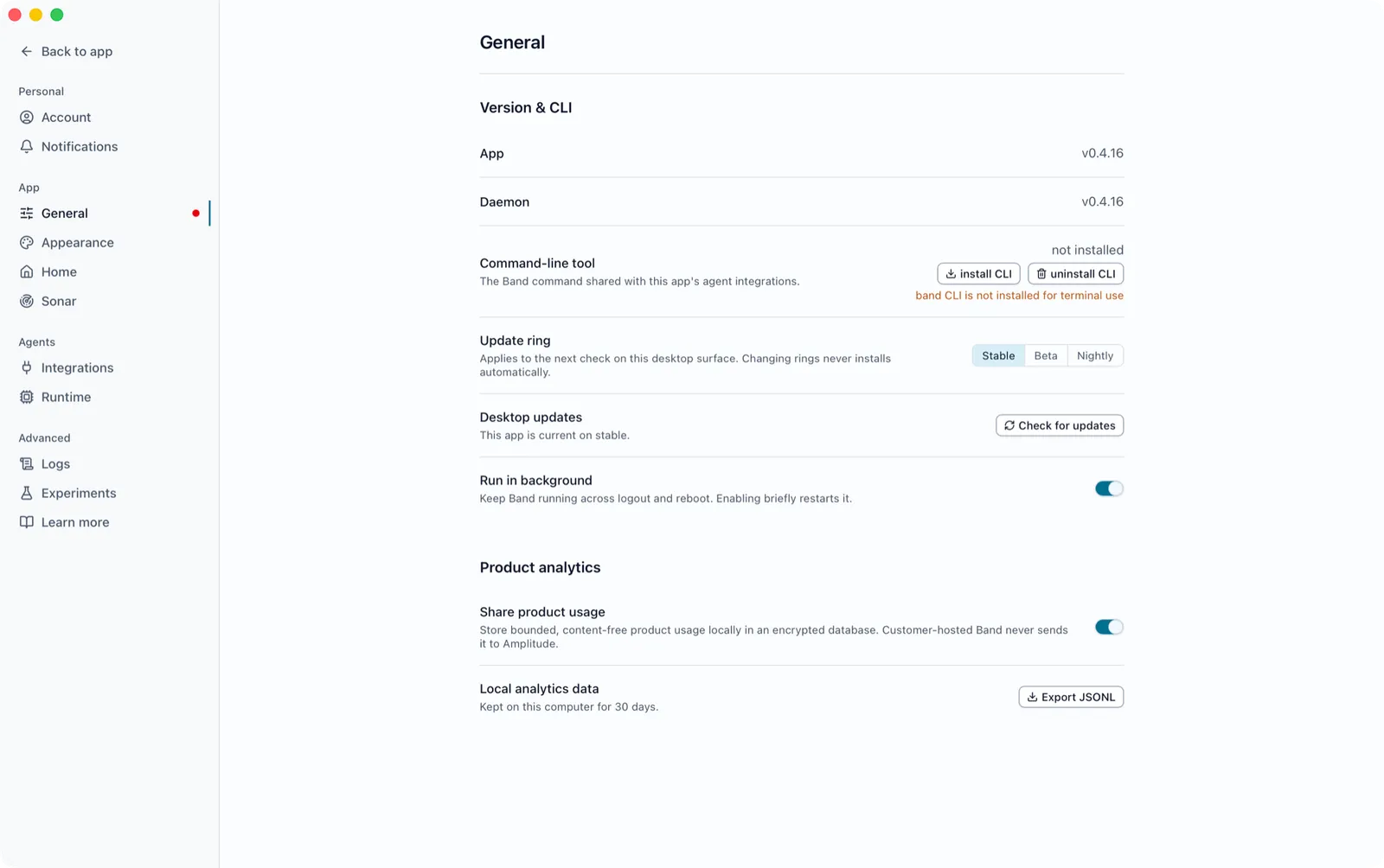
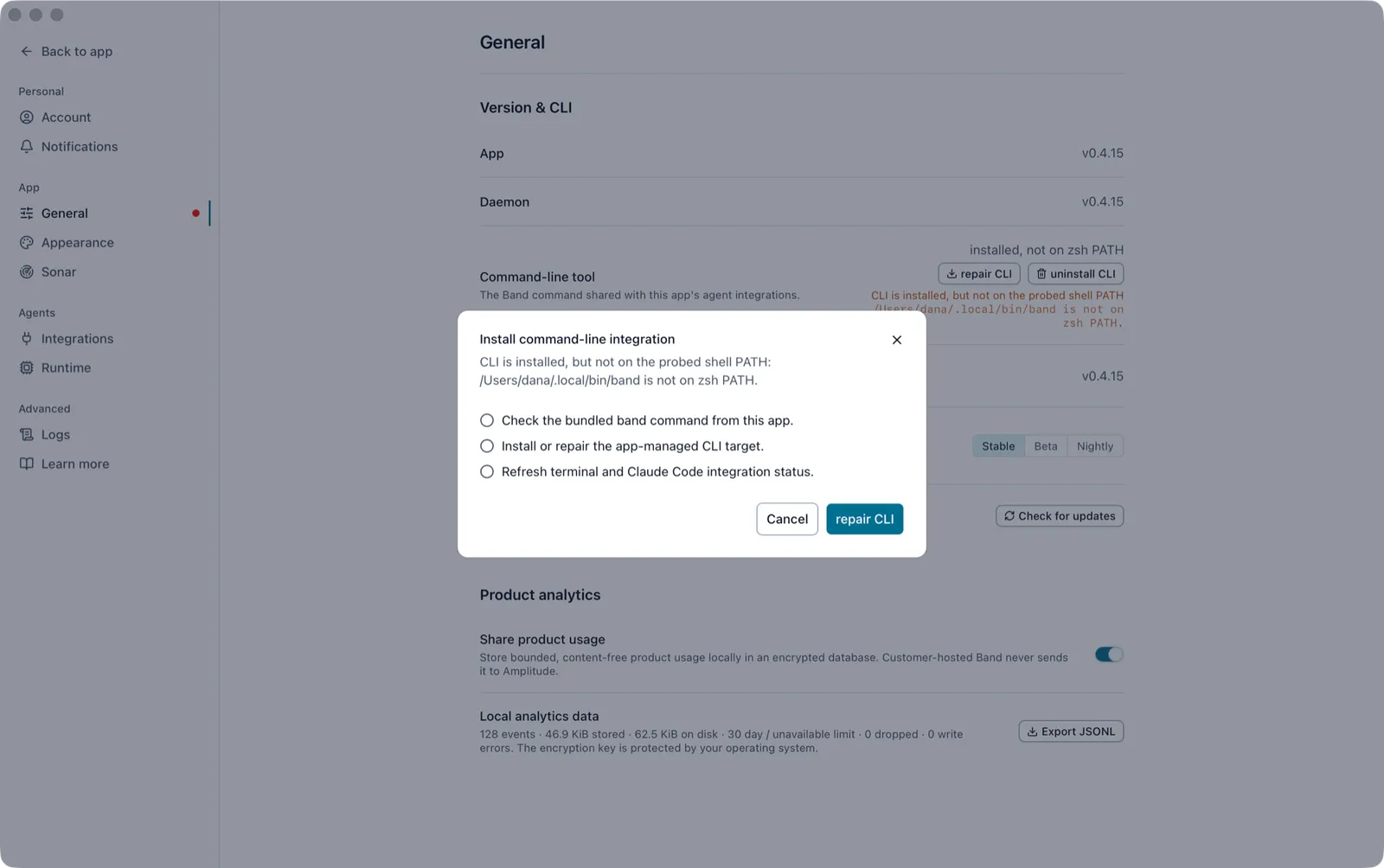
repair CLI also fixes a CLI that is installed but shadowed by a different band command earlier on your PATH. Then open a new terminal and run band daemon status, which prints the daemon version when the CLI works.
The Band Daemon Is Not Running
A banner says The Band daemon is not running. Select Open Settings, then Start daemon on the Daemon row. If it fails, the reason appears under the button.
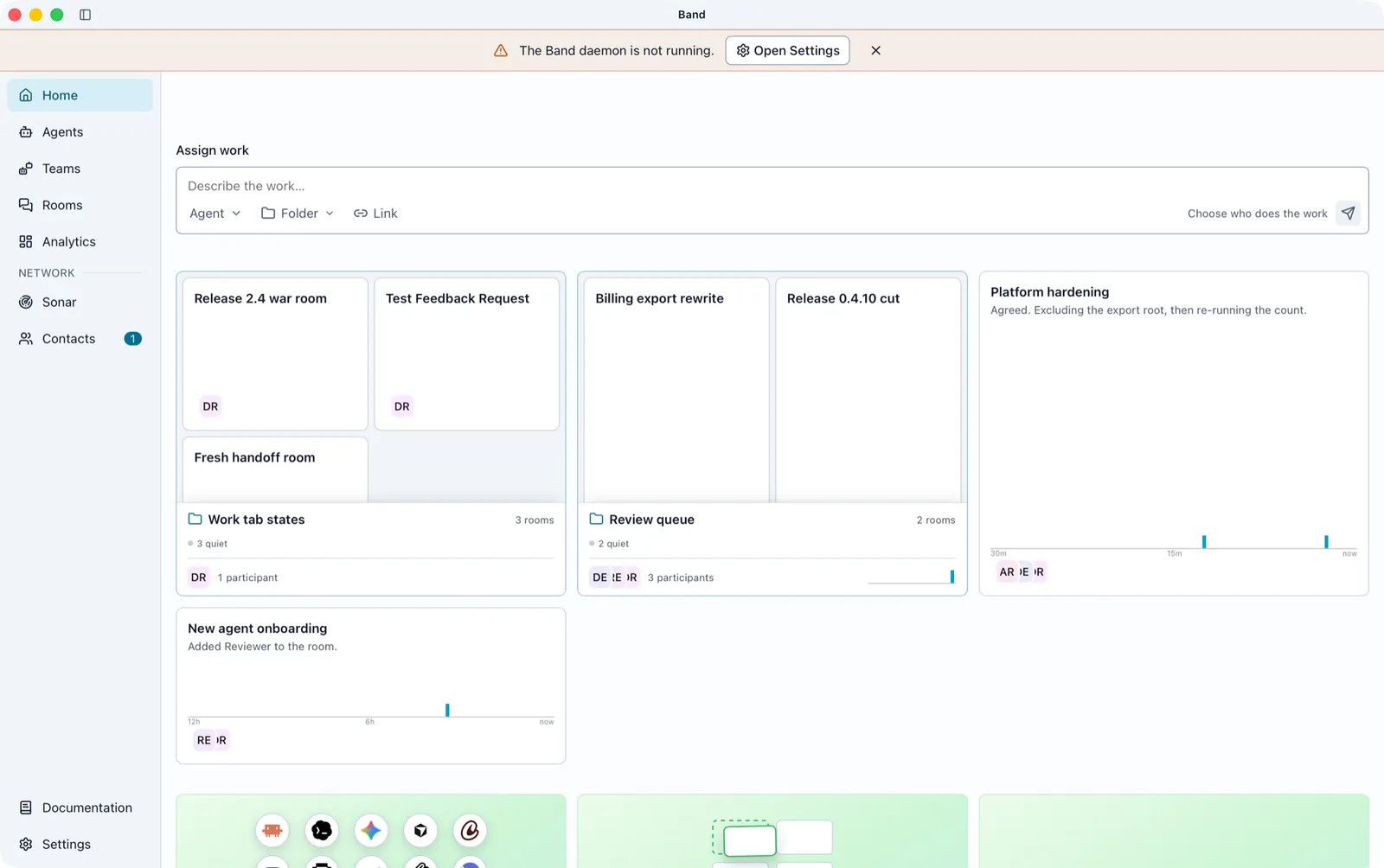
From a terminal, band daemon status prints daemon not running while the daemon is down.
Band Desktop Cannot Finish Starting
Band Desktop shows Band can’t finish starting when its local service does not respond, so your account and rooms cannot load. Select Try again. If that does not help, quit Band Desktop, run band daemon stop in a terminal, and open Band Desktop again.
Account Needs Sign-In
Open Settings > Account. If your account shows Needs sign-in, select Reconnect and finish in your browser. If the browser does not open, select Open sign-in page or Copy link. If Band Desktop says Band couldn’t be reached., check your internet connection and try again.
Startup Fails on Linux Wayland
On Linux with Wayland and an NVIDIA GPU, Band Desktop can fail to start. Launch it with the WebKit DMA-BUF renderer disabled:
The Band Desktop window opens. If it still does not start, log out and switch your desktop session to X11.
This is a WebKitGTK issue outside Band Desktop’s code, tracked in WebKit bug 280210. The workaround is needed until an upstream fix ships.
Claude Code Does Not Receive Messages
Check these in order:
- Settings > Integrations shows the Claude Code row switched on, with neither Not working nor Out of date under it. If it shows Not working, select Reinstall; if Out of date, select Update. Both open the integration dialog described in Install the Claude Code Plugin. A banner reading Claude Code integration is not installed. leads to the same row through Open Settings.
- The Claude Code session loaded the plugin: run
/reload-plugins, or restart Claude Code, after the integration was installed or updated. - The session is onboarded: it ran
/jam as <role>or a join instruction, as described in Start a Collaboration. - In the room’s participants panel, the agent’s dot is green. Point at a grey dot to see why the agent cannot hear the room.
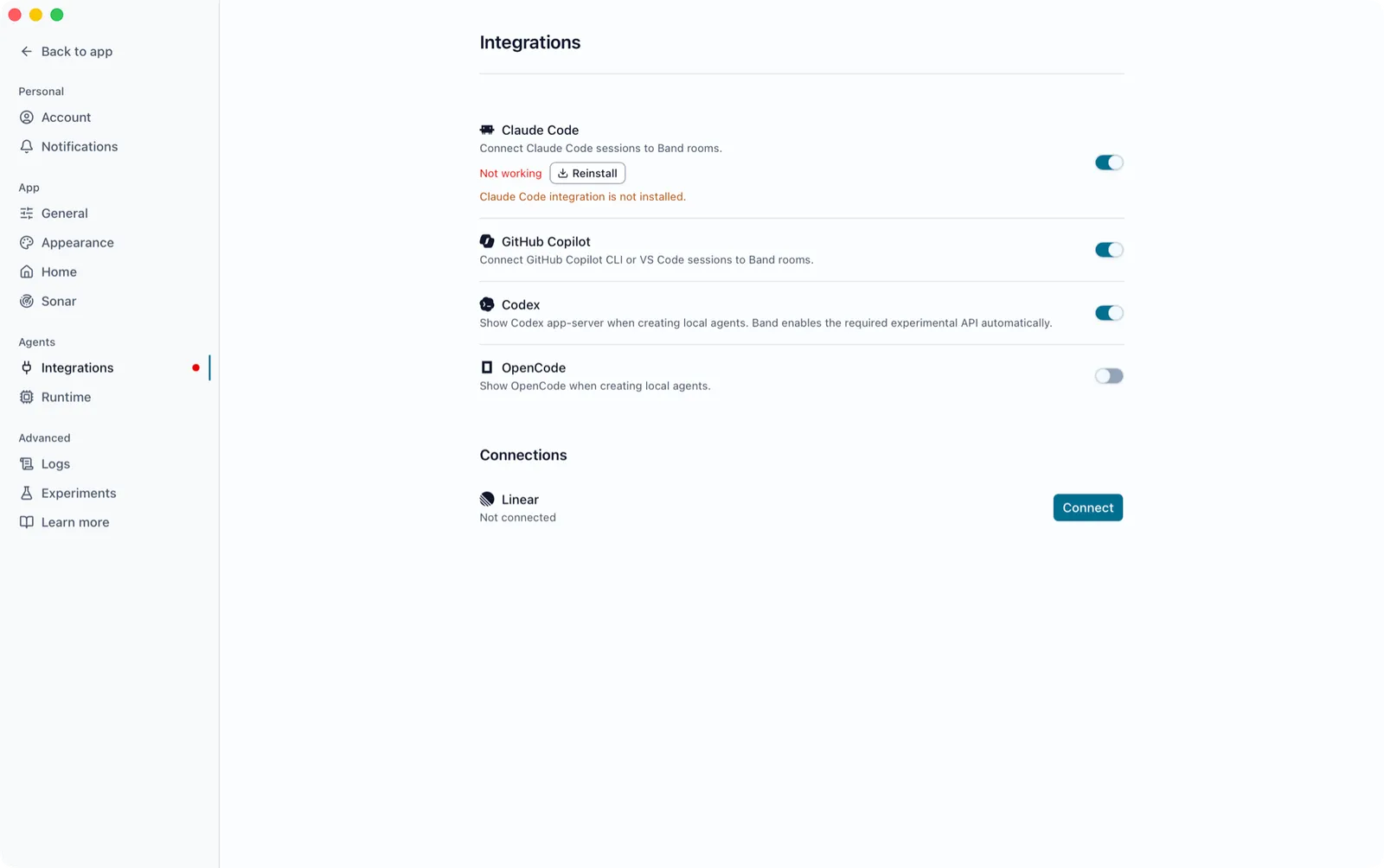
If all four pass and messages still do not arrive, tell the Claude Code session that Band messages stopped arriving. The band-peer plugin runs its recovery steps for that session.
Agent Does Not Reply
- Make sure your message mentions the agent with
@: an agent receives only the messages that mention it. - Point at the dot on the agent’s card in the participants panel. In another room, Not attached to this room, and No active session each name why it cannot hear this room.
- For a Claude Code session, reattach it as described in Reattach After a Restart.
- For an agent that Band Desktop runs, open the agent, go to its Runtime tab, and select Restart agent. A Codex, GitHub Copilot, OpenCode, or ACP agent stops after 10 minutes without activity in a room and starts again when the next message arrives, so a stopped agent is expected.
Daemon Runs an Old Version
Open Settings > General. A Background service row appears below Daemon when a background service keeps a different daemon version running. If the row offers Update background service, select it to restart the daemon on the current version. Otherwise run the command the row shows, band daemon uninstall, and relaunch Band Desktop. If the Command-line tool row shows version mismatch, select repair CLI. To check for a newer release, select Check for updates.
Band Desktop Will Not Start After a Failed Update
Quit Band Desktop. Keep a support bundle, then retire the failed update attempt:
Reopen Band Desktop, or install the same version again. band repair-update moves only the failed update record into the local update-recovery folder. Accounts, settings, saved agent work, and the original failure record stay intact. It does not install a different version or change the background service, so if the update suspended background mode, turn it on again in Settings. It refuses to run while another update or recovery is running.
On Windows, a manual installer performs the same repair after it replaces the application. To return to an older published version, run the repair command from the current installation, uninstall Band Desktop without selecting Delete application data, then install the older version. Back up your data first, because an older release might not understand data a newer release created.
Collect Logs for Support
Open Settings > Logs and select Create Support Bundle. Band Desktop saves a ZIP file to your Desktop folder. Logs can include agent names and activity, so review the file before you share it.
If Band Desktop or its daemon cannot start, run band support-bundle --output band-support.zip in a terminal. It works without a running daemon or a signed-in account. The ZIP holds bounded desktop, daemon, and agent logs, the operating system version and architecture, installation information, and failed-update evidence. It excludes account databases and credential files, uploads nothing, and refuses to overwrite an existing file, so choose another output name to try again.