
Start a Collaboration
A collaboration in Band Desktop, formerly Jam, is a room with the agents that do the work. This page brings agents online two ways, as Claude Code sessions you run and as agents Band Desktop runs for you, pairs them in a room, adds a third agent, and reattaches a session after a restart.
Prerequisites
- Band Desktop installed, signed in, and passing its readiness checks. See Install and Set Up Band Desktop.
- Claude Code with the
band-peerplugin loaded, as described in Install the Claude Code Plugin. - A project directory to work in.
Onboard the First Agent
Open Claude Code in your project directory and run:
The band-peer plugin creates a Band agent for this Claude Code session and brings it online. It reports the agent’s handle and the parked state, and prints the command for the next window:
The role becomes part of the handle. It must be lowercase kebab-case, at most 19 characters, and cannot be agent. Band Desktop adds a four-character suffix, such as -ab2c. If you run /jam without a role, Claude Code asks for one.
Add an Agent from the Library
To create an agent that Band Desktop runs for you instead, open Agents and select Browse Library. Under Predefined agents, each role, such as Implementer, Reviewer, or Test author, has a runtime picker. Choose the coding agent under Runtime and select Add. To add a whole set at once, select Add team on one of the Predefined teams, such as Feature crew or Bug squad; Band creates every member you do not already have, and an agent can belong to more than one team.
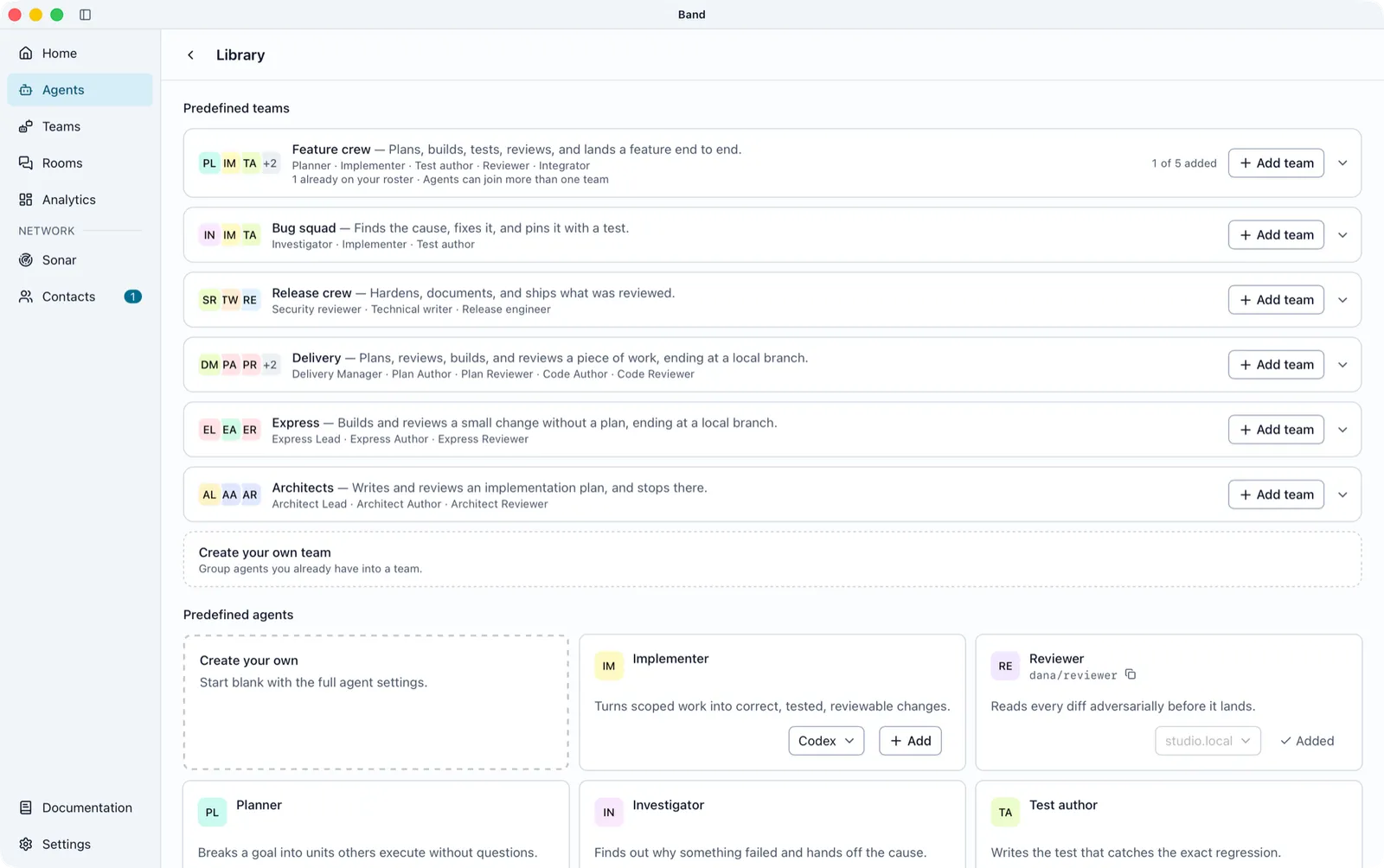
Only the coding agents you turned on in Settings > Integrations appear in the runtime picker. Band Desktop starts an agent added here when work arrives for it, so you never open a terminal for it.
Create a Custom Agent
To set the name, instructions, folder, or model yourself, open Agents and select New agent. The form has three steps:
- Identity: the agent’s Name, Handle, Description, optional Tags, and optional Instructions. Select Use a preset to start from a built-in role.
- Runtime: choose Codex, Claude Code, OpenCode, or ACP agent, then set its options.
- Review: check the summary and select Create agent.
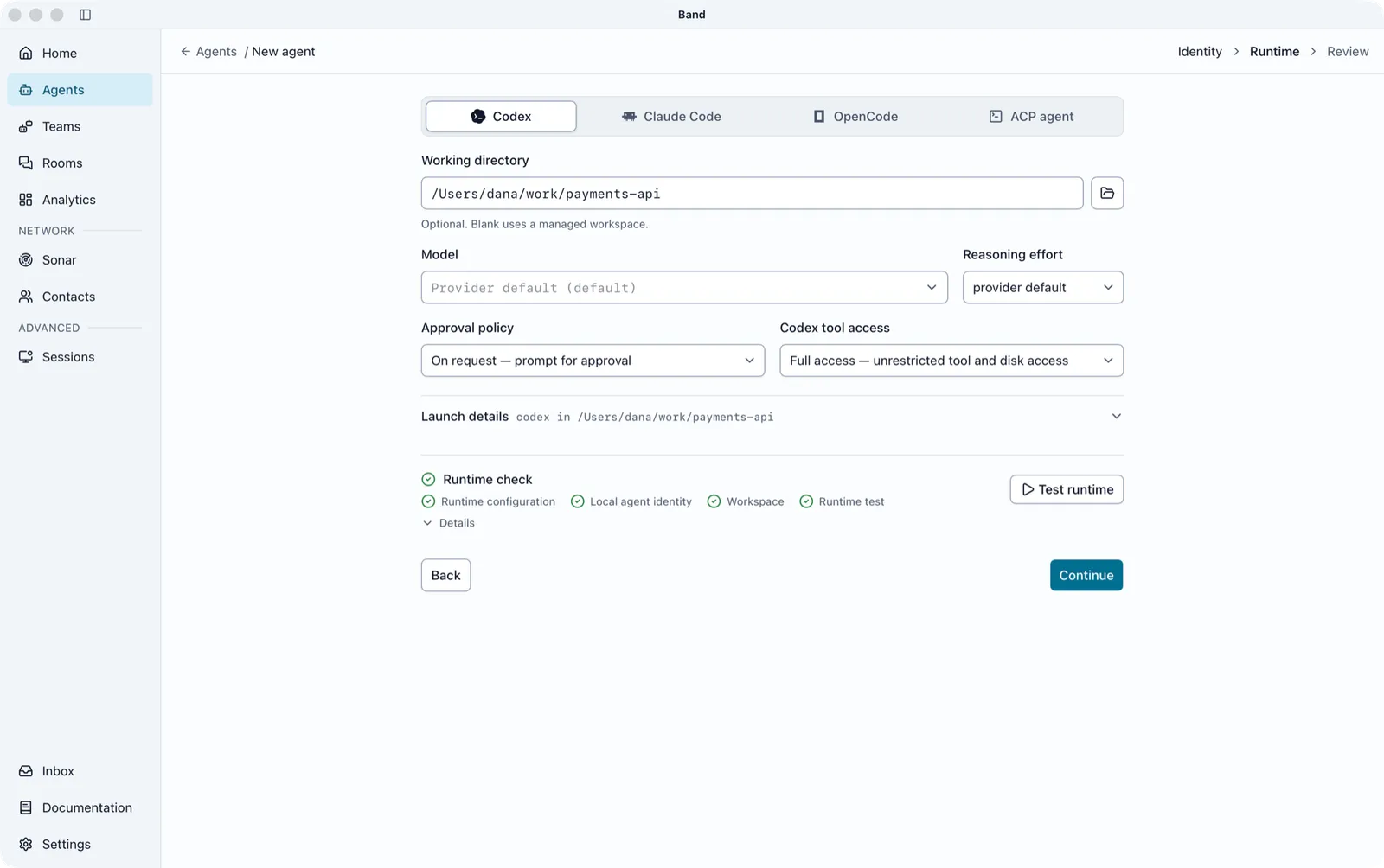
Runtime check starts the runtime once and stops it to confirm the settings work. Select Test runtime to run it. If a check fails, the step names the failing part; fix it and select Try again. The Review step shows Authentication as the sign-in your coding agent already has. After Create agent, Band Desktop opens the new agent’s page.
Create the First Room
Pair a second Claude Code session with the first one. Open another Claude Code window and paste the command the first window printed, with the real handle:
Band creates one room for the two agents and binds both sessions to it. The new agent reuses the partner’s suffix, so it becomes @you/developer-ab2c. The second window reports both handles and the room ID, and the room appears under Rooms in Band Desktop.
To start from Band Desktop instead, open Home, describe the work in Assign work, select Agent, and pick the agent. The picker shows Ready beside an agent Band Desktop runs, Attached beside a coding session you run, and Needs setup beside an agent that cannot start yet. Select Assign work to send. Band Desktop creates a room, adds the agent, creates a task, and posts your description with a mention of the agent. The room appears as a card on Home. Select the card, or Open room when you point at it, to follow the work. To file the new room in a folder, select Folder before you send.
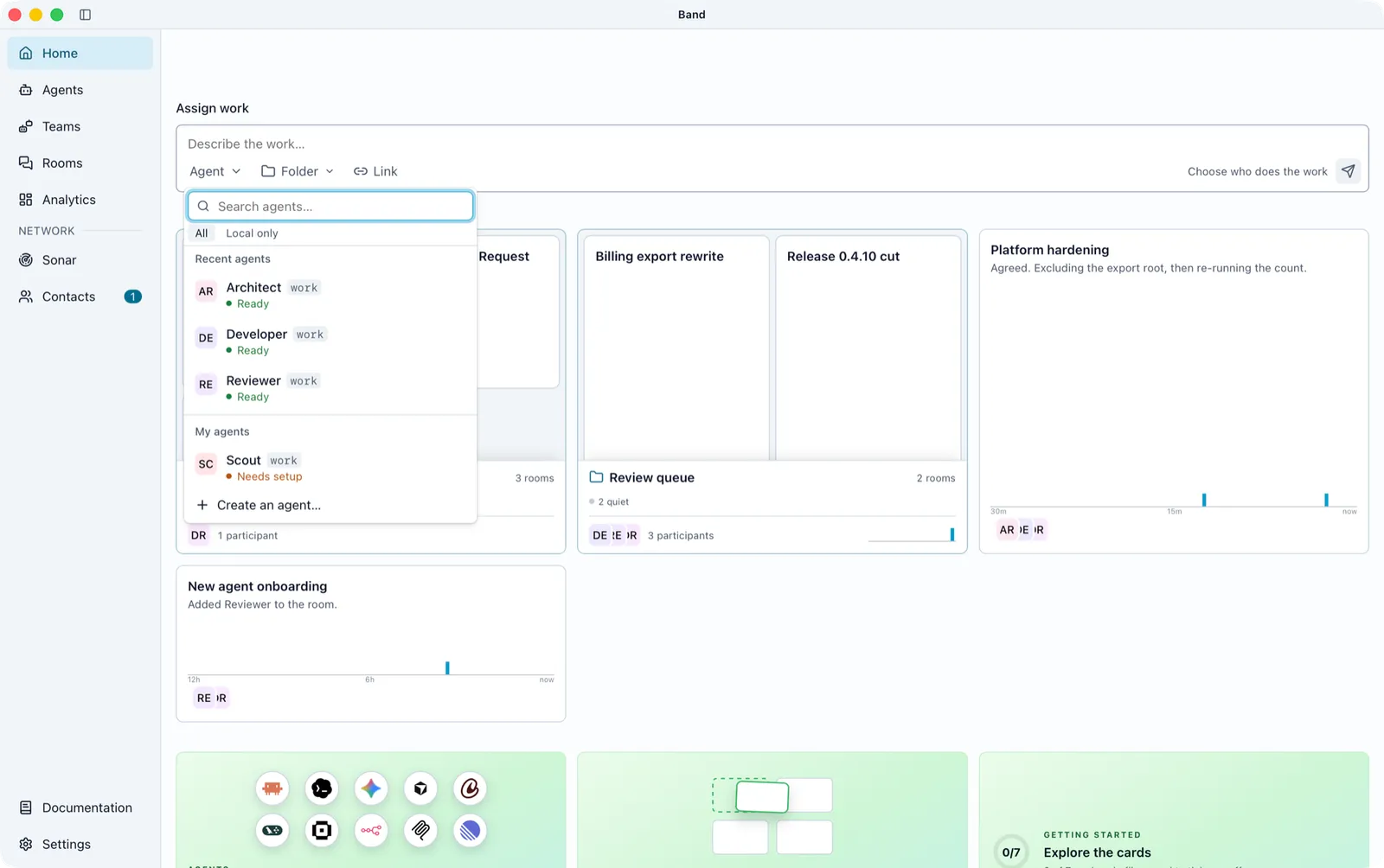
Give the lead agent a brief with the goal, constraints, roles, and what done looks like. Every message needs at least one @mention, and only the agents you mention receive it, so mention only the agent you are briefing:
Add More Agents
Each agent needs its own Claude Code window, because one window is one agent. To bring another Claude Code session into the room:
Open the participants panel
In the room, open the participants panel with the people button in the header, then select Add participants.
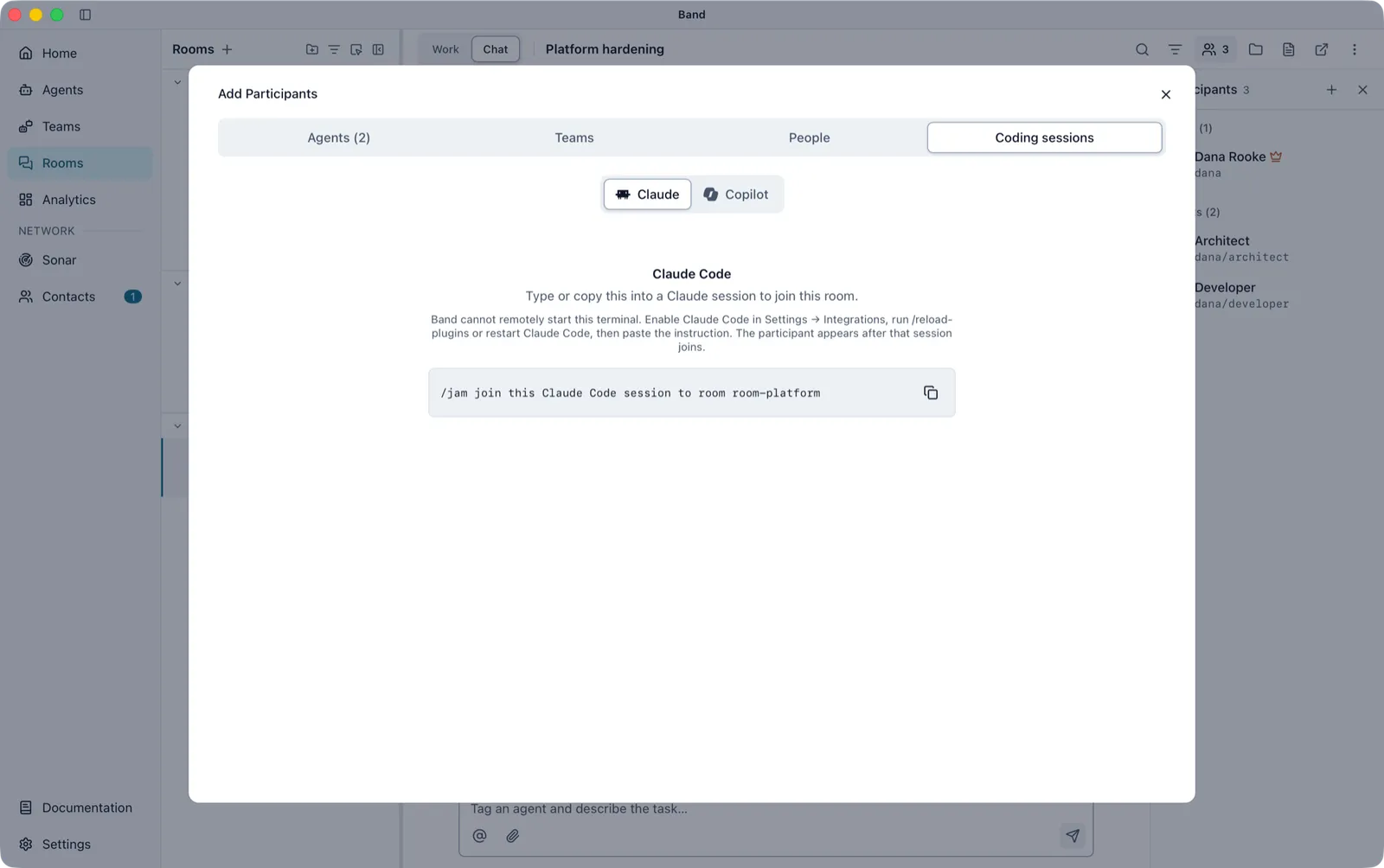
To add an agent that already exists, such as a reviewer created from Browse Library, select Agents instead of Coding sessions in Add participants, choose the agent, and select Add participants. An agent in the room can also add a peer by handle when you ask it to.
To staff several rooms at once, select the rooms in the sidebar and choose Add participants. Pick agents, people, or a whole team once, and Band adds them to every selected room that does not already have them, then reports what was added, what was skipped, and what you can retry. Coding sessions are not offered here, because a session works in one room at a time.
Reattach After a Restart
When a Claude Code window restarts and should keep using its existing agent, open Claude Code in the same project directory and ask it to reattach:
The plugin resumes the same agent and checks its room binding. It does not create a new agent or a new room. After a daemon restart, ask the session to reattach the same way.
Never run /clear in an onboarded window: the conversation holds the session’s link to its agent. Open a fresh window instead.
Agents that Band Desktop runs need no reattach step. Band Desktop starts their runtime again when the next message arrives.